Linking Items
Add links between items in Ninety — such as Rocks, Milestones, Issues, To-Dos, and Headlines.

Written by Tommy Mains
Updated at March 3rd, 2026
-
 Account Options and Troubleshooting
-
 Integrations
-
 Getting Started
-
 Insights
-
 Scorecard
-
 Rocks
Rocks
-
 To-Dos
-
 Issues
-
 Meetings
-
 Headlines
-
 V/TO
V/TO
-
 Accountability Chart
-
 1-on-1
-
 People and Toolbox
-
 Directory
-
 Knowledge Portal
-
 Assessments
-
 Mobile
-
 Maz
Maz
Table of Contents
What Is Item Linking in Ninety and How to Link Items
Linking connects related items across Ninety's tools, so your team can document dependencies, track progress, and see how individual tasks and issues relate to larger goals. For example, you can link all the To-Dos, Issues, and Headlines that support a single Rock — keeping related work visible in one place.
Linked items appear in the Linked Items section of each item's details panel, so everyone on the team can follow the thread between a Rock and the work it generates.
There are two ways to link items in Ninety:
- Create a linked item — spawn a new item directly from an existing one. The new item inherits the original's title and description as a starting point.
- Link to an existing item — connect an item that already exists in Ninety to another active item.
How to create a linked item from an existing item
You can create a new linked Rock, To-Do, Issue, or Headline from any existing item in the Rocks, To-Dos, Issues, or Headlines tools (or from those tools' sections during an active meeting).
To create a linked item:
- Right-click the item's row (or click the ellipsis at the end of its row).
- Select Create Linked [item type] from the dropdown — for example, Create Linked To-Do or Create Linked Rock.
- Edit the details in the popup as needed. The new item inherits the original's title and description by default. The default due date is seven days out for To-Dos, Issues, and Headlines; 90 days out for Rocks.
- Click the Create Linked [item type] button.
The new item is created and immediately linked to the original. Both items will show the connection in their Linked Items section.
What can be linked to what?
Any item type can be used to create a linked item of any other type. The table below shows all supported combinations.
| Source item | Can create a linked… |
|---|---|
| Rock | To-Do, Rock, Issue, Headline |
| To-Do | To-Do, Rock, Issue, Headline |
| Issue | To-Do, Rock, Issue, Headline |
| Headline | To-Do, Rock, Issue, Headline |
Note: You can create as many linked items from a single item as needed — there is no limit.
How to link to an existing item

If the item you want to connect already exists in Ninety, you can link it directly without creating a new one. This method supports a wider range of item types, including Milestones and Goals.
Supported item types for linking to existing items:
- Rocks
- Milestones
- To-Dos
- Issues
- Headlines
- Goals (from your team's Vision > Strategy page, including cascaded goals from the leadership team's Vision)
To link an existing item:
- Open the item's details panel by clicking its row on its tool page.
- Scroll down to the Linked Items section.
- Click + Linked Item to open the Link to Existing Items window.
- Use the left (<) and right (>) carets to navigate between item types.
- Click the item(s) you want to link. You can select multiple items at once.
- Click the Link Items to [item name] button to save the links.
Team scope: The Link to Existing Items window only shows items belonging to the same team as the item you're linking from. Items from other teams cannot be linked. The window loads five items at a time per category — scroll down within a category to load more.
For example, if your Marketing team has a Rock focusing on a product launch campaign, they can link any number of their team's Rocks, Milestones, To-Dos, Issues, Headlines, and Targets to the Rock. However, they cannot link items from other teams to their Rock.
How to unlink items
You can remove a link from any item's details panel at any time.
To unlink an item:
- Navigate to the tool for the item you want to edit (for example, Rocks or To-Dos).
- Click the item to open its details panel.
- Scroll down to the Linked Items section.
- Click Edit.
- Click Unlink next to the item you want to remove.
Creating linked To-Dos from other items — detailed instructions
Linked To-Dos show the item(s) they're linked to in the Linked Items section of their details card.
You can create a linked To-Do from an existing item in Ninety (such as a Rock, To-Do, Issue, or Headline). Click through the tabs below to learn how.
Rock
To link an existing Rock to a To-Do: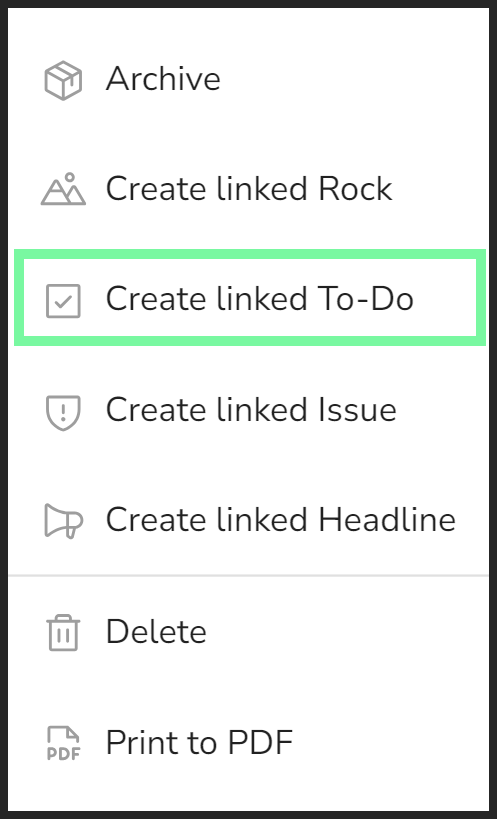
- Right-click the Rock's row.
- You do this in the Rocks tool or while reviewing Rocks during a meeting.
- Click Create Linked To-Do from the dropdown.
- Edit details as desired from the popup.
- The assigned due date will be seven days out.
- The title and description start the same as the Rock's.
- Click the Create Linked To-Do button.
To-Do
To link an existing To-Do to another To-Do: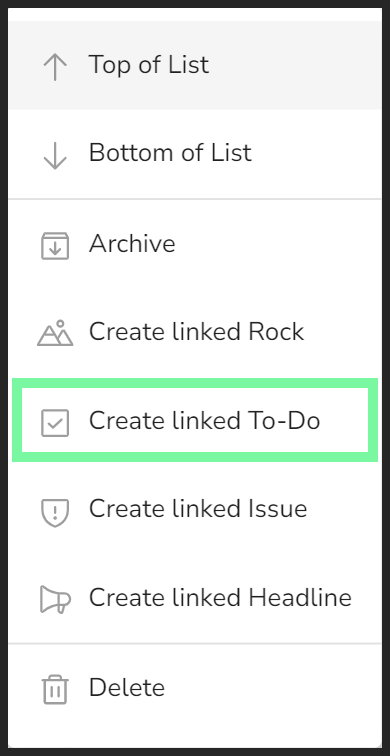
- Right-click the To-Do's row.
- You can do this in the To-Dos tool or while reviewing To-Dos during a meeting.
- Click Create linked To-Do from the dropdown.
- Edit details as desired from the popup.
- The assigned due date will be seven days out.
- The title and description start the same as the original To-Do.
- Click the Create Linked To-Do button.
Issue
To link an existing Issue to a To-Do: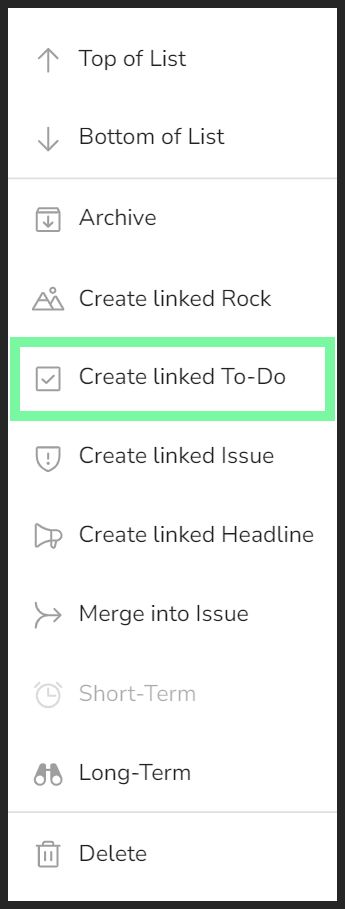
- Right-click the Issue's row.
- You do this in the Issues tool or while reviewing Issues during a meeting.
- Click Create Linked To-Do from the dropdown.
- Edit details as desired from the popup.
- The assigned due date will be seven days out.
- The title and description start the same as the Issue's.
- Click the Create Linked To-Do button.
Headline
To link an existing Headline or Cascaded Message to a To-Do: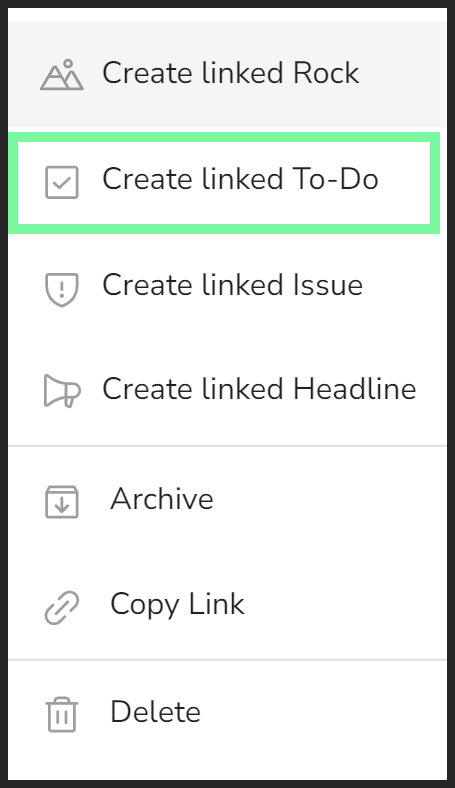
- Right-click the Issue's row.
- You do this in the Headlines tool or while reviewing Headlines during a meeting.
- Click Create Linked To-Do from the dropdown.
- Edit details as desired from the popup.
- The assigned due date will be seven days out.
- The title and description start the same as the Headline's.
- Click the Create Linked To-Do button.
To unlink an item for a To-Do, the user assigned to the To-Do should:
- Click My 90 or To-Dos from the left navigation.
- Click the To-Do to open its details card.
- Scroll down to the Linked Items section.
- Click Edit.
- Click Unlink.
Creating linked Rocks from other items — detailed instructions
Linked Rocks show the item(s) it's linked to in the Linked Items section of its details card.
You can create a linked Rock from an existing item in Ninety (such as a Rock, To-Do, Issue, or Headline). Click through the tabs below to learn how.
Rock
To link an existing Rock to a new Rock: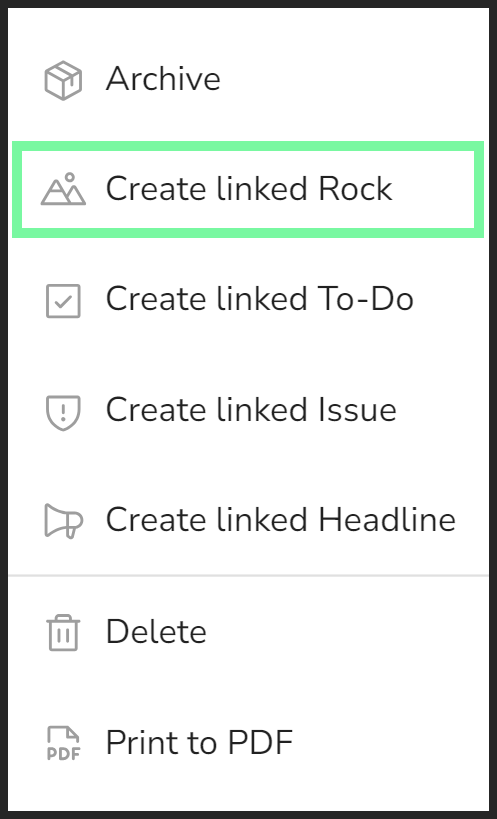
- Right-click the Rock's row.
- You do this in the Rocks tool or while reviewing Rocks during a meeting.
- Click Create Linked Rock from the dropdown.
- Edit details as desired from the popup.
- The assigned due date will be seven days out.
- The title and description start the same as the Rock's.
- Click the Create Linked Rock button.
To-Do
To link an existing To-Do to a new Rock: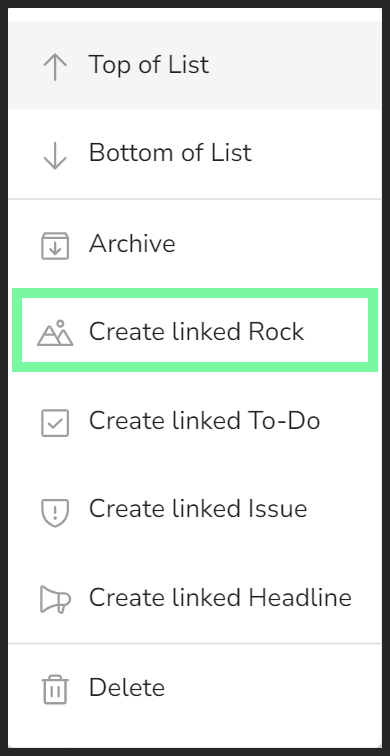
- Right-click the To-Do's row.
- You can do this in the To-Dos tool or while reviewing To-Dos during a meeting.
- Click Create linked Rock from the dropdown.
- Edit details as desired from the popup.
- The assigned due date will be seven days out.
- The title and description start the same as the To-Do's.
- Click the Create Linked Rock button.
Issue
To link an existing Issue to a new Rock: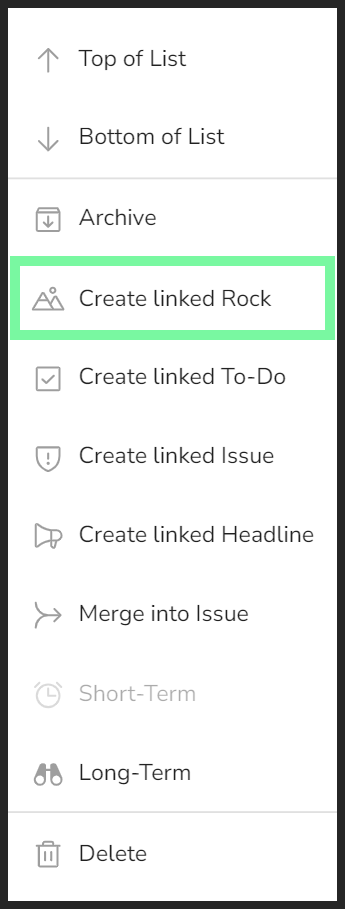
- Right-click the Issue's row.
- You do this in the Issues tool or while reviewing Issues during a meeting.
- Click Create Linked Rock from the dropdown.
- Edit details as desired from the popup.
- The assigned due date will be seven days out.
- The title and description start the same as the Issue's.
- Click the Create Linked Rock button.
Headline
To link an existing Headline or Cascaded Message to a new Rock: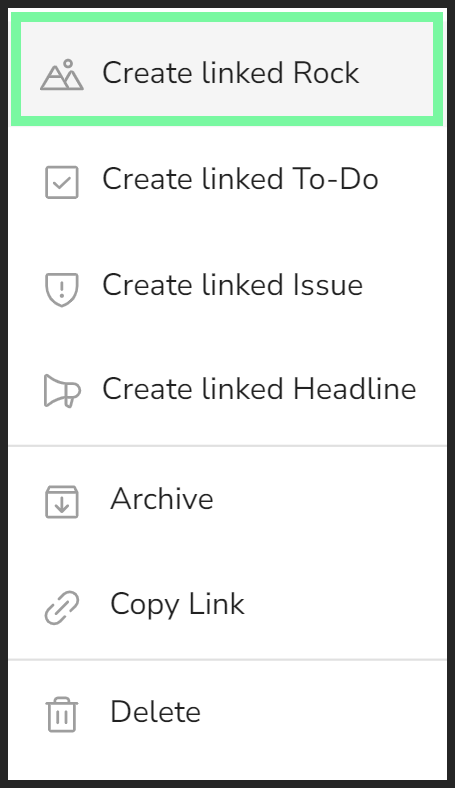
- Right-click the Issue's row.
- You do this in the Headlines tool or while reviewing Headlines during a meeting.
- Click Create Linked Rock from the dropdown.
- Edit details as desired from the popup.
- The assigned due date will be seven days out.
- The title and description start the same as the Headline's.
- Click the Create Linked Rock button.
To unlink an item from a Rock, the user assigned to the Rock should:
- Click Rocks from the left navigation.
- Click the Rock to open its details card.
- Scroll down to the Linked Items section.
- Click Edit.
- Click Unlink.
Creating linked Issues from other items — detailed instructions
Linked Issues show the item(s) it's linked to in the Linked Items section of its details card.
You can create a linked Issue from an existing item in Ninety (such as a Rock, To-Do, Issue, or Headline). Click through the tabs below to learn how.
Rock
To link an existing Rock to a new Issue: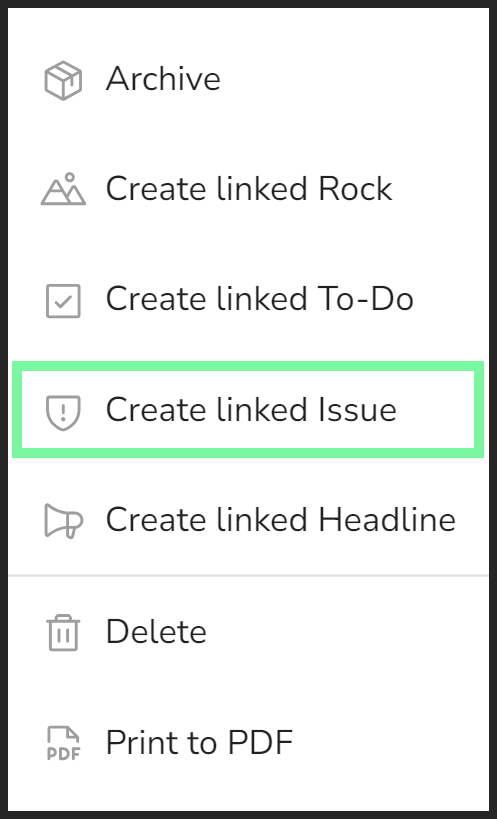
- Right-click the Rock's row.
- You do this in the Rocks tool or while reviewing Rocks during a meeting.
- Click Create Linked Issue from the dropdown.
- Edit details as desired from the popup.
- The assigned due date will be seven days out.
- The title and description start the same as the Rock's.
- Click the Create Linked Issue button.
To-Do
To link an existing To-Do to a new Issue: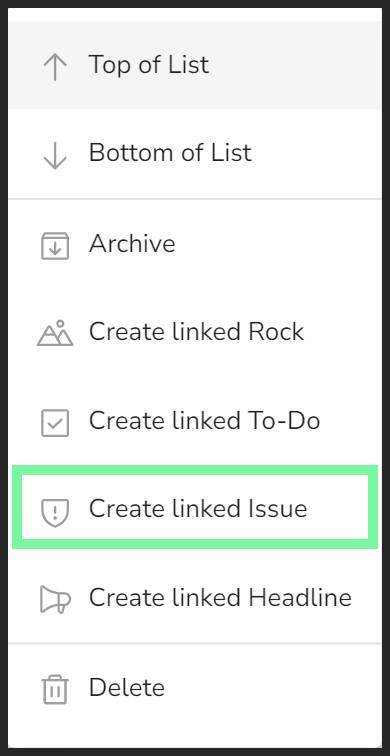
- Right-click the To-Do's row.
- You can do this in the To-Dos tool or while reviewing To-Dos during a meeting.
- Click Create linked Issue from the dropdown.
- Edit details as desired from the popup.
- The assigned due date will be seven days out.
- The title and description start the same as the To-Do's.
- Click the Create Linked Issue button.
Issue
To link an existing Issue to a new Issue: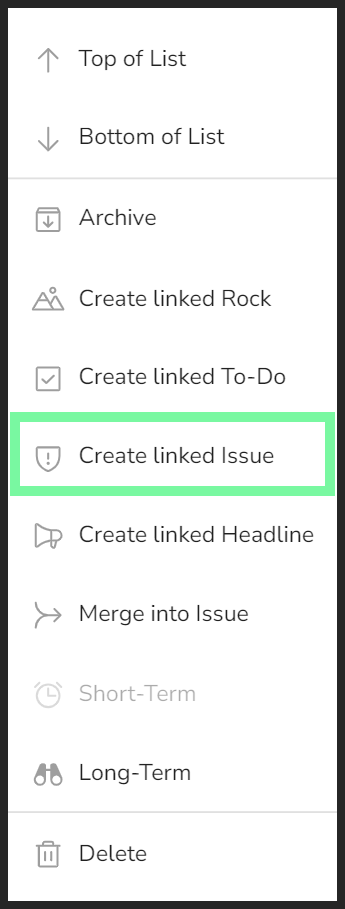
- Right-click the Issue's row.
- You do this in the Issues tool or while reviewing Issues during a meeting.
- Click Create Linked Issue from the dropdown.
- Edit details as desired from the popup.
- The assigned due date will be seven days out.
- The title and description start the same as the Issue's.
- Click the Create Linked Issue button.
Headline
To link an existing Headline or Cascaded Message to a new Issue: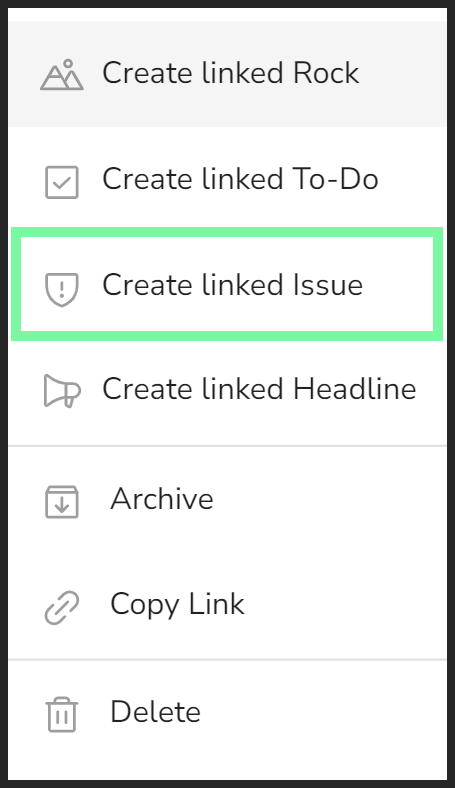
- Right-click the Issue's row.
- You do this in the Headlines tool or while reviewing Headlines during a meeting.
- Click Create Linked Issue from the dropdown.
- Edit details as desired from the popup.
- The assigned due date will be seven days out.
- The title and description start the same as the Headline's.
- Click the Create Linked Issue button.
To unlink an item from an Issue, the user assigned to the Issue should:
- Click Issues from the left navigation.
- Click the Issue to open its details card.
- Scroll down to the Linked Items section.
- Click Edit.
- Click Unlink.
Creating linked Headlines from other items — detailed instructions
Linked Headlines show the item(s) it's linked to in the Linked Items section of its details card.
You can create a linked Headline from an existing item in Ninety (such as a Rock, To-Do, Issue, or Headline). Click through the tabs below to learn how.
Rock
To link an existing Rock to a new Headline: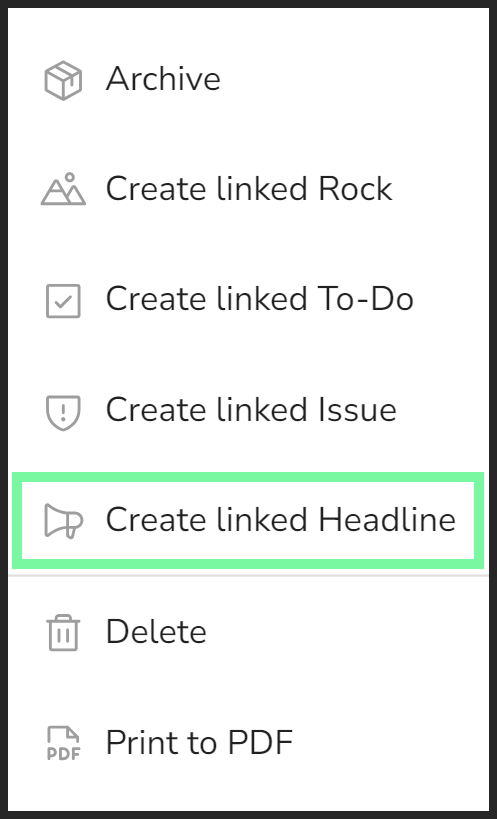
- Right-click the Rock's row.
- You do this in the Rocks tool or while reviewing Rocks during a meeting.
- Click Create Linked Headline from the dropdown.
- Edit details as desired from the popup.
- The assigned due date will be seven days out.
- The title and description start the same as the Rock's.
- Click the Create Linked Headline button.
To-Do
To link an existing To-Do to a new Headline: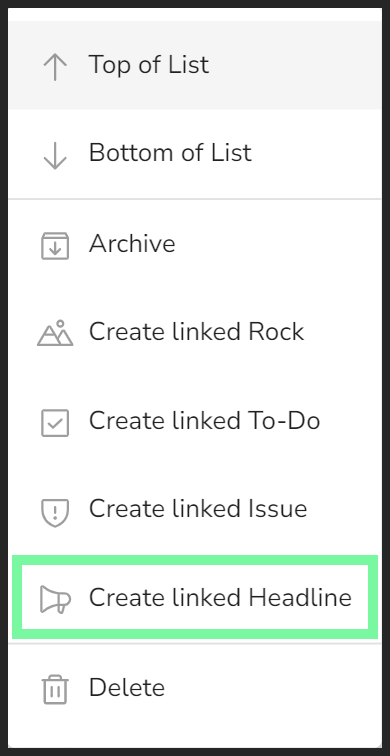
- Right-click the To-Do's row.
- You can do this in the To-Dos tool or while reviewing To-Dos during a meeting.
- Click Create linked Headline from the dropdown.
- Edit details as desired from the popup.
- The assigned due date will be seven days out.
- The title and description start the same as the To-Do's.
- Click the Create Linked Headline button.
Issue
To link an existing Issue to a new Headline: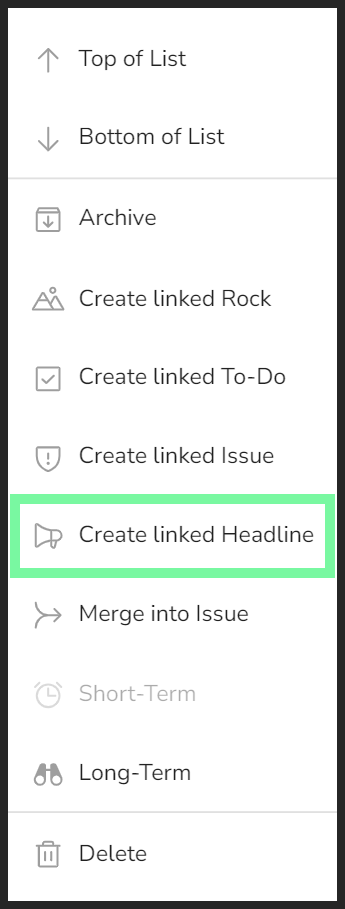
- Right-click the Issue's row.
- You do this in the Issues tool or while reviewing Issues during a meeting.
- Click Create Linked Headline from the dropdown.
- Edit details as desired from the popup.
- The assigned due date will be seven days out.
- The title and description start the same as the Issue's.
- Click the Create Linked Headline button.
Headline
To link an existing Headline or Cascaded Message to a new Headline: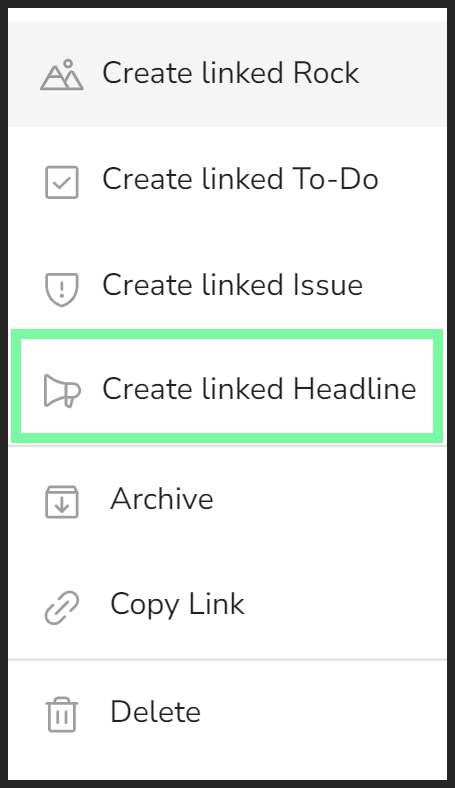
- Right-click the Issue's row.
- You do this in the Headlines tool or while reviewing Headlines during a meeting.
- Click Create Linked Headline from the dropdown.
- Edit details as desired from the popup.
- The assigned due date will be seven days out.
- The title and description start the same as the Headline's.
- Click the Create Linked Headline button.
To unlink an item from a Headline, the user assigned to the Headline should:
- Click Headlines from the left navigation.
- Click the Headline to open its details card.
- Scroll down to the Linked Items section.
- Click Edit.
- Click Unlink.