Archiving Items
Learn about the archive and how to archive completed Headlines, Issues, Rocks, and To-Dos.

Written by Tommy Mains
Updated at March 3rd, 2026
-
 Account Options and Troubleshooting
-
 Integrations
-
 Getting Started
-
 Insights
-
 Scorecard
-
 Rocks
Rocks
-
 To-Dos
-
 Issues
-
 Meetings
-
 Headlines
-
 V/TO
V/TO
-
 Accountability Chart
-
 1-on-1
-
 People and Toolbox
-
 Directory
-
 Knowledge Portal
-
 Assessments
-
 Mobile
-
 Maz
Maz
Table of Contents
How to Archive Items in Ninety
Ninety's archive is a tool-by-tool storage area for items you no longer need in your active workspace. When you archive an item — whether a Rock, To-Do, Issue, or Headline — it moves out of your working list and into the archive, where it's saved and searchable. Archiving is reversible: you can unarchive any item and bring it back to your active list at any time.

Each tool has its own archive. To view archived items in any tool, click the Archive toggle on the Filters bar.
Looking for tool-specific archving instructions?
See Archiving and Deleting Rocks, Archiving and Deleting To-Dos, Archiving and Deleting Issues, and Archiving and Deleting Headlines for step-by-step guidance tailored to each tool. To archive or delete a Measurable, use the Measurable Manager.
Archive vs. delete: what's the difference?
Understanding the distinction between archiving and deleting items in Ninety will help protect your team's data.
| Archive | Delete | |
|---|---|---|
| What it does | Moves the item out of your active list and into the archive. | Permanently removes the item from Ninety. |
| Can it be undone? | Yes — unarchive the item to restore it. | No — deletion cannot be undone. |
| Is the data preserved? | Yes — all details, history, and progress are saved. | No — the item and its data are gone permanently. |
| Who can do it? | Any licensed user. | Any licensed user. |
Best practice: When in doubt, archive rather than delete. Archived items preserve your team's history and can always be restored. Deletion is permanent.
How to archive an item
Any licensed user can archive an individual item across all tools. There are two ways to do it.
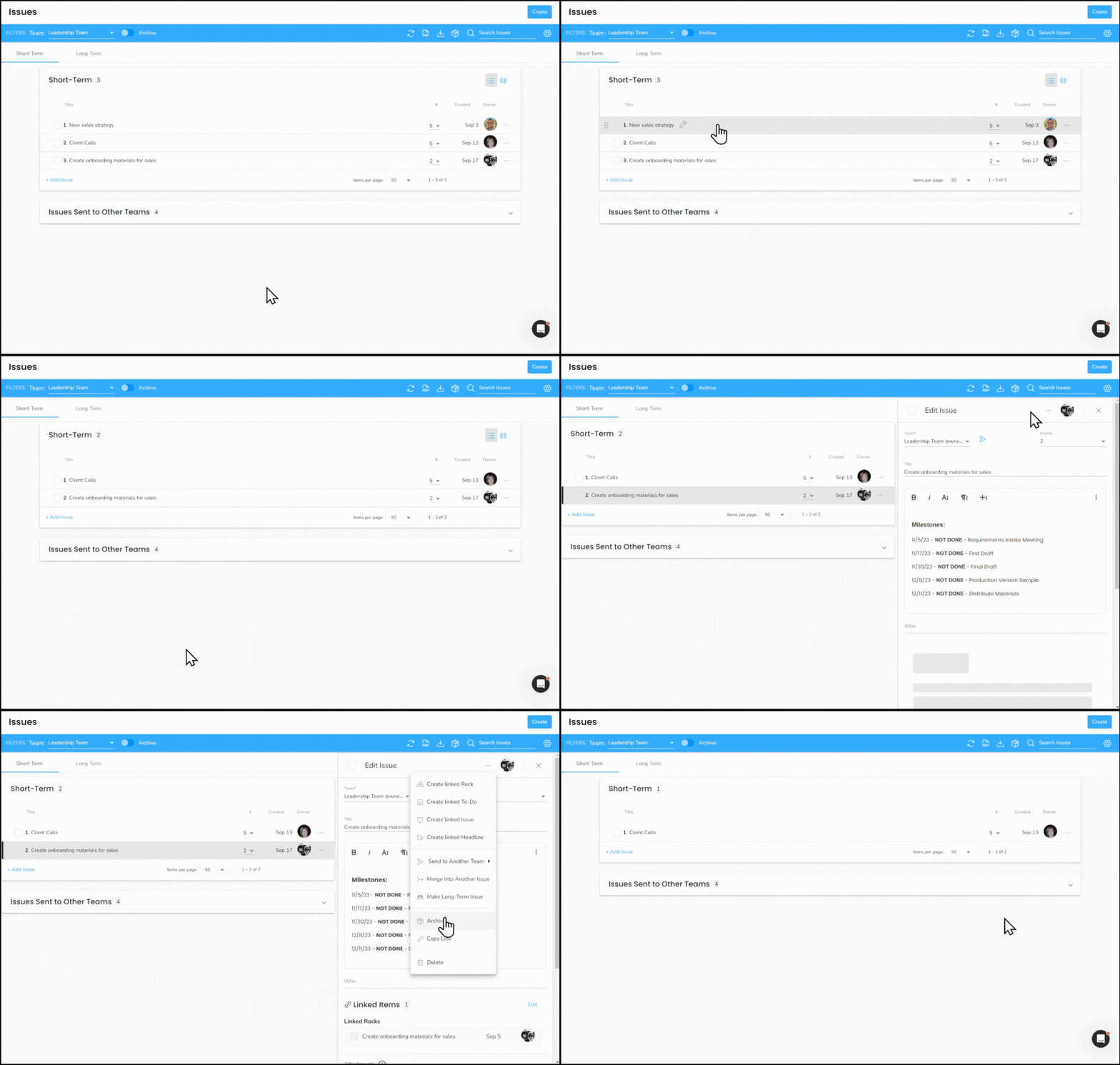
Option 1 — Right-click method:
- Navigate to the tool (Rocks, To-Dos, Issues, or Headlines) from the left navigation.
- Right-click the item, or click the ellipsis at the end of its row.
- Select Archive from the dropdown.
Option 2 — Details panel method:
- Click the item to open its details panel.
- Click the ellipsis at the top of the details panel.
- Select Archive from the dropdown.
How to bulk archive completed items
Users with a Manager, Admin, Owner, or Coach role can archive all completed items across a tool in one step. The steps vary slightly by tool.
For Rocks:
- Click Rocks from the left navigation.
- Click the ellipsis on the right side of the Filters bar.
- Select Archive Completed from the dropdown.
For To-Dos, Issues, and Headlines:
- Click the relevant tool from the left navigation.
- Click the storage box icon on the Filters bar.
- Click Archive on the confirmation popup.

How to restore an archived item
If you archived something by mistake or want to bring a past item back into your active list, you can unarchive it at any time.
To restore an archived item:
- Navigate to the tool from the left navigation.
- Select the intended team from the Team dropdown.
- Click the Archive toggle to view archived items.
- Right-click the item you want to restore.
- Select Unarchive from the dropdown.
The item will return to your active list.
What can you do inside the archive?
While viewing the archive, you have several options for reviewing and exporting your team's historical data:
- Click the Team dropdown to view another team's archive for this tool.
- Click the PDF icon to export the visible archived items as a PDF.
- Click the download icon to export visible archived items as a .csv file.
- Type in the Search field to find a specific archived item.
What about Scorecard Measurables and the V/TO®?
Archiving for Scorecard Measurables and the V/TO® works differently from the tools described above.
- Scorecard Measurables are archived and managed through the Measurable Manager, which is accessible to Admin, Owner, and Coach roles. See The Measurable Manager for details.
- The V/TO® is automatically archived when you conclude a Quarterly Meeting, or you can archive it manually. See Archiving the V/TO® for details.