Reporting, Analytics, and Data Visualization in Ninety
Where to evaluate your company's data in Ninety.

Written by Tommy Mains
Updated at March 5th, 2025
-
 Account Options and Troubleshooting
-
 Integrations
-
 Getting Started
-
 Insights
-
 Scorecard
-
 Rocks
Rocks
-
 To-Dos
-
 Issues
-
 Meetings
-
 Headlines
-
 V/TO
V/TO
-
 Accountability Chart
-
 1-on-1
-
 People and Toolbox
-
 Directory
-
 Knowledge Portal
-
 Assessments
-
 Mobile
-
 Maz
Maz
Table of Contents
What Happened to Dash?
We have deprecated our initial data visualization tool, Dash. We're actively replicating and improving Dash's functionality in our updated tools, like Insights and Scorecard. Use these tools to view reporting analytics from your teams' and company's data from our most-used tools, including filters and drill-in tables. The tools included are:
- Data Scorecards
- Rocks
- Meetings
- Issues
- 1-on-1
- To-Dos
Share Your Thoughts
Do you have recommendations or thoughts about the switch? We'd love to hear from you.
Introduction to Insights
How to Use Ninety's Insights Tool
Quality information helps inform quality decisions. The Insights tool provides performance dashboards across five of Ninety's core tools, giving individual leaders and executive teams a clear picture of whether their organization is operating on the system as designed. Teams running EOS® use it to monitor Rock completion rates, meeting effectiveness, Issue resolution patterns, and 1-on-1 review completion, all from a single location.
The Insights tool is available on the Accelerate and Thrive plans. It is not available on the Free or Essentials plans. To access it, click Insights in the left navigation.
Note: Insights shows analytics, not item lists. Each page displays charts and trend data you can drill into for underlying records. If you're looking for a list of open Rocks or Issues across the company, use the Rocks or Issues tool directly. Insights answers the question "how are we doing?" rather than "what are the specific items?"
Filters common to all Insights pages
Every page in the Insights tool shares a consistent set of filters. Understanding how they work helps you pull the right data on the first try.
Team. The options available in the Team filter depend on your role. Owners and Coaches can see any team in the organization. Admins can see every non-private team. Managers and Team Members can see all the teams they belong to. Select All to aggregate data across every team you have access to. Only one team can be selected at a time, except for All.
Note: Private teams are excluded from Insights for Admins, even if they attend those teams' meetings. If a team's data is missing, confirm whether the team is set to private in Company Settings.
Date range. Most pages offer the following options: YTD (year-to-date), Current Quarter, Previous Quarter, Last 5 Quarters, and Custom (which requires selecting a start and end date via the calendar filter).
Drill-in. Every chart card has an expanding arrow icon in the upper-right corner. Click it to open a table of the underlying records behind the chart. This is the primary way to move from a high-level trend to the specific items driving it: for example, from "we solved 60% of our Issues" to the list of which Issues were and weren't resolved.
Rocks
The Rocks page in Insights lets you monitor quarterly goal performance across teams and over time. It includes three data visualization cards.
Rock Progress shows the completion rate and status breakdown for Rocks in the selected period, displayed as a donut chart (for single-quarter views) or a stacked bar chart (for multi-quarter views). Completed Rocks appear in green, on-track in blue, and off-track in red.
Milestones: Progress to Completion tracks milestone completion across the quarter using a burndown-style chart.
Milestones: Revised Due Dates shows how often milestone due dates are changed after they're set. An unusually high revision rate often surfaces as an Issue worth discussing in a Level 10 Meeting®.
In addition to the Team and Date range filters, the Rocks page includes a Type filter to separate Company Rocks from Team Rocks.
Note: Rock completion rates in Insights are calculated from each Rock's status at the time it was archived, not its current status. If a team was late updating statuses at the end of a quarter, the historical completion rate for that period cannot be corrected retroactively.
Insights does not include Scorecard Measurables data. To track Measurables performance over time, use the Scorecard tool and its export options.
For full details, see Rocks Analytics.
Meetings
The Meetings page in Insights analyzes your teams' meeting performance based on user-reported ratings and meeting activity data. It includes five data visualization cards: Meetings Rating, Short-Term Issues Solve Rate, To-Dos Created, Average Time in Issues, and Short-Term Issues Resolution by Priority.
A unique feature of this page: hovering over any data point on one of the first four cards cross-filters the data shown on the other three, so you can explore a specific time period across multiple metrics simultaneously.
Important: The Meetings Insights page only displays data from Level 10 Meetings. If a team has only run custom meeting types, no data will appear for that team, even if they have been meeting consistently. To see Meetings Insights data for a team, that team must run its meetings using the Level 10 Meeting agenda.
For full details, see Meetings Analytics.
To-Dos
The To-Dos page in Insights shows how effectively your team captures and completes To-Dos. It includes two data visualization cards.
Overview Chart displays the total number of To-Dos created for your team(s) in the selected date range, broken into four status segments: In Progress, Overdue, Due Today, and Completed. Hover over any segment to see the count. Click the drill-in icon to see the full table, including the title, status, due date, team, and owner for each To-Do.
The Revised Due Dates Chart shows how many times To-Do due dates were changed after assignment, grouped into three buckets: 0 revisions, 1 to 5 revisions, and more than 5. A pattern of frequent revisions across a team may indicate an Issue worth discussing.
In addition to Team and Date range, the To-Dos page includes an Owner filter to narrow the view to a specific individual's assigned To-Dos.
How the completion percentage is calculated. The completion percentage is based on the original due date, not the most recent revision. Revising a To-Do's due date does not recalculate the percentage.
What the Overview Chart counts. The Overview Chart counts To-Dos created within the selected date range, not To-Dos that were open or active during that period. If a To-Do was created before your filter window but was still in progress during it, it will not appear in the chart. If you see a lower count in Insights than on your To-Dos list, this is typically the reason.
To-Dos completed after their due date. Insights does not show which To-Dos were completed late. The Overview Chart shows the current status only. To identify late completions, export your To-Dos from the To-Dos tool (with the Archive toggle on) and compare the Completed On Date column to the Due Date column.
For full details, see To-Dos Analytics.
Issues
The Issues page in Insights analyzes how successfully your teams resolve short-term Issues. It includes two data visualization cards.
Short-Term Issues: Resolution by Priority provides a breakdown of the number of Issues resolved during the selected date range, organized by priority. Hover over any segment to see the percentage and count for each priority.
Short-Term Issues: Resolution Over Time by Priority is a bar graph displaying resolved Issues by priority over time. Managers can use this chart to confirm that teams are consistently discussing and resolving high-priority Issues, a key indicator of effective Level 10 Meetings.
Note: The Issues Insights page shows resolved Issues only. Open or unresolved Issues do not appear here. To view open Issues across teams, use the Issues tool directly.
For full details, see Issues Analytics.
1-on-1 Reviews
The 1-on-1 page in Insights provides aggregated data from Quarterly and Annual Reviews completed in the 1-on-1 tool. It includes four cards: Discussion Rate, Core Value Rating, LMA® Assessment, and GWC™ Rating. Owners and Admins also have access to a Right Person, Right Seat Report.
In addition to the Date range filter, this page includes a Discussion Type filter (Quarterly or Annual) and a Manager filter. Owners and Admins can set the Manager filter to All to view data across all managers in the company. Managers cannot adjust the Manager filter and see only their own direct reports' data.
What the 1-on-1 page tracks. This page shows data from Quarterly and Annual Reviews only. Regular weekly 1-on-1 meetings do not appear here.
How the date filter works. The date range filters by the time period the review covers, not the date the review was completed. If a Q1 review was conducted in April, it appears under Q1, not April. If you're looking for overdue reviews that don't appear in the current quarter filter, expand the date range to include the period when those reviews were scheduled to be held.
The Right Person, Right Seat Report is available to Owners and Admins. Click Generate Report to create a PDF that summarizes how well each manager's direct reports exhibit the company's Core Values and GWC their Seats. Click View Report to open it once generated.
Who can access the 1-on-1 page in Insights:
- Owners can view Insights from all reviews.
- Admins can view Insights from all reviews except those completed by Owners.
- Coaches can view Insights from all reviews.
- Managers can view Insights from their direct reports' reviews only, per the primary Accountability Chart.
- Team Members (Managees) and Observers cannot access the 1-on-1 page in Insights.
If a manager cannot see a managee's data in Insights, confirm that the reporting relationship is correctly established in the primary Accountability Chart and that the manager has the Manager role or higher.
For full details, see 1-on-1 Analytics.
Exporting Insights data
The Insights tool does not have a built-in export option. Analytics charts and drill-in tables cannot be downloaded directly to PDF or Excel. To work with the data outside Ninety, export from the source tool for each area.
| Tool | Export path | Format |
|---|---|---|
| Rocks | Rocks → select team → ellipsis on filters bar → Download Excel | XLSX |
| Meetings | Meetings → Past Meetings → Download button | CSV |
| To-Dos | To-Dos → select team → Download button on filters bar | XLSX |
| Issues | Issues → select team → Download button on filters bar | XLSX |
| 1-on-1 Reviews | 1-on-1 → Show Completed → PDF icon next to each review | PDF (one at a time) |
There is no bulk export for 1-on-1 analytics data, and there is no scheduled or emailed reporting option at this time.
For companies with 10 or more teams that need a comprehensive data export, Ninety's support team can pull a full report covering Rocks, Issues, Scorecard, and Directory data. Exports typically take up to 72 hours. To request one, contact support.
For full export guidance, see Exporting Your Data.
User permissions overview for the Insights tool
The Insights tool requires an Accelerate or Thrive subscription. It is not available on the Free or Essentials plans.
| Role | Rocks | Meetings | To-Dos | Issues | 1-on-1 |
|---|---|---|---|---|---|
| Owner | All teams | All non-private teams | All teams | All teams | All reviews |
| Admin | All non-private teams | All non-private teams | All non-private teams | All non-private teams | All reviews (except Owner-completed) |
| Coach | All non-private teams | All non-private teams | All non-private teams | All non-private teams | All reviews |
| Manager | Own teams only | Own teams only | Own teams only | Own teams only | Direct reports only |
| Team Member (Managee) | Own teams only | Own teams only | Own teams only | Own teams only | No access |
| Observer | No access | No access | No access | No access | No access |
What's in the Insights tool
Rocks Analytics: How to analyze Rock Progress, Milestone completion, and revised milestone due dates using the Rocks Insights page. Covers all filters, chart types, and drill-in tables.
Meetings Analytics: How to analyze meeting ratings, Issue solve rates, To-Dos created in meetings, and time spent on Issues. Covers the cross-filter hover behavior and each card's drill-in view.
To-Dos Analytics: How to use the Overview Chart and Revised Due Dates chart to track To-Do status and identify patterns in due date behavior across teams.
Issues Analytics: How to analyze Issue resolution by priority and over time, and how to use the drill-in table to identify which Issues were resolved and by whom.
1-on-1 Analytics: How to use the Discussion Rate, Core Value Rating, LMA® Assessment, and GWC™ Rating cards, and how to generate the Right Person, Right Seat Report.
Frequently asked questions
Can I see Scorecard Measurables data in Insights?
No. The Insights tool does not include Scorecard Measurables. To track Measurables performance over time, use the Scorecard tool and export to CSV from the ellipsis on the filters bar.
To view a similar Insights experience for your Scorecards, see Scorecard Trends View.
Insights is blank or shows no data.
The most common causes: the selected date range has no data for that period, the selected team has no activity of that type, or a browser cache issue is displaying a stale view. Try selecting a broader date range, switching to All in the Team filter, and doing a hard refresh. If the page is still blank after those steps, contact support.
Using the Scorecard Tool
The Scorecard Tool
The Scorecard tool simplifies setting up and managing your team’s Scorecards to keep track of goals on five levels:
- Organization-wide
- Leadership Team
- Departmental
- Teams
- Individuals
Reviewing the Scorecard tool every week is a critical function of team meetings.
Operating Scorecards According to Your User Role
The Scorecard tool's functionality changes based on each user's role in Ninety. Click here for a basic understanding of user permissions for this tool.
In short, all licensed users can view and operate their assigned Measurables, while users with Manager or higher level permissions can add Measurables and groups to Scorecards and adjust settings.
Scorecard Tool Overview
Use the Scorecard tool to organize your team's key metrics into Measurable groups, set targets, and monitor progress with Weekly, Monthly, Quarterly, and Annual Scorecards.
What Are Measurables?
A Measurable is a quantifiable metric tracked by a person, team, or organization to assess performance. Measurables form Scorecards that teams use to monitor performance across time. In Ninety, Measurables are interchangeable with key performance indicators (KPIs).
Often, your Scorecard will mix leading and lagging indicators of success. Lagging indicators tell us about what's already happened, like revenue generated or goods sold. Leading indicators, like activity at the top of your sales funnel, help us see a wider picture.
Our tool provides Scorecards for each of your teams to document and track their most important Measurables.
Learn more about making data a superpower for your organization with our free On Data Guide.
Navigating the Scorecard Tool
Navigating the Scorecard Tool
How to Navigate the Scorecard Tool in Ninety
The Scorecard tool is where your team tracks its Measurables (the quantifiable metrics that tell you whether your business is on track).
To open the Scorecard tool, click Scorecard from the left navigation, then select your team from the Team dropdown. Each team in Ninety has four Scorecards — Weekly, Monthly, Quarterly, and Annual — each with its own set of Measurables organized into groups. Use the tabs at the top of the tool to switch between them.
Note: Your company may use a different name for this tool. Organizations running on EOS use "Scorecard" by default, but your account's Owners and Admins can customize tool names through Company Settings. If you don't see "Scorecard" in the left navigation, look for the tool name your organization has chosen — it leads to the same place.
Scorecard filters

The filters bar at the top of the Scorecard tool controls which data you see and how it's displayed. Use these filters to switch teams, change the time period, or adjust how your Measurable data is grouped into columns.
Tip: Your filter selections are automatically saved in the page URL. You can bookmark the page or share the link to preserve your current filter configuration.
Team dropdown
The Team dropdown lets you switch between the Scorecards of different teams you belong to. Many Ninety users are members of multiple teams. Make sure you have the correct team selected before reviewing or entering data.
View by dropdown
Use the View by dropdown to choose how your data is grouped into columns: by week, month, quarter, or year. This determines how your Measurable data is displayed without changing the underlying data itself.
- Week. Display data in individual weekly columns. This is the default for Weekly Scorecards.
- Month (read-only). Display prorated data aggregated by calendar month.
- Quarter (read-only). Display prorated data aggregated by calendar quarter.
- Year (read-only). Display prorated data aggregated by calendar year.
When you select Month, Quarter, or Year views, Ninety dynamically calculates prorated data based on your weekly entries. Weeks that span multiple time periods are automatically split proportionally, so each month, quarter, or year receives accurate, calendar-aligned data. See the Understanding prorated data section below for details.
Important: The View by filter changes how your existing Scorecard data is displayed. It does not convert Weekly Measurables into Monthly, Quarterly, or Annual Measurables: those remain separate Scorecards with their own Measurables.
Date range dropdown
The Date range dropdown controls the time period displayed on your Scorecard. Each Scorecard type has its own default, and you can select any of the following options:
- Custom. Define a specific start and end date.
- Last 13 Weeks. View the most recent 13 weeks of data. This is the default for Weekly Scorecards.
- QTD (Quarter to Date). View data from the beginning of the current quarter to today.
- YTD (Year to Date). View data from the beginning of the current fiscal year to today.
- Current Quarter. View data for the entire current quarter, including future weeks.
- Current Year. View data for the entire current fiscal year, including future weeks.
The date range automatically adjusts based on your View by selection to ensure complete periods are displayed. For example, if you select "View by: Month" and "Date Range: Last 13 Weeks," Ninety fetches enough data to display complete months without cutting off partial periods at the beginning or end.
Ascending or descending toggle
The arrow buttons next to the date range control the column order. Click the left arrow to display dates from oldest to newest (ascending), or the right arrow to display dates from newest to oldest (descending), with the most recent period on the left.
Accessing the Measurable Manager
The Go to Measurable Manager button is located on the filters bar. Click it to open the Measurable Manager, where Owners, Admins, and Coaches can view, filter, archive, and manage all Measurables across the organization.
How rollup data is displayed
Each Measurable controls how its data is aggregated when you use the View by dropdown to switch to a read-only view (Month, Quarter, or Year). The rollup setting determines whether the aggregated value is a total or an average.

By default, Measurables total their values when viewed in a read-only rollup. Measurables that use a percentage as their target typically need to be changed to the average setting — otherwise a monthly view would show the sum of four weekly percentages, which isn't meaningful.
To change how a Measurable displays its rollup data:
- Navigate to the Measurable on your team's Scorecard.
- Click the Measurable's title to open its details panel.
- Scroll down to the Target section.
- Click the Show rollup data as dropdown.
- Select Average or Total.
Why the Goal and Average columns don't change in rolled-up views
When you switch to a Month, Quarter, or Year view, the data columns aggregate your weekly entries — but the Goal and Average columns continue to display the single-period (weekly) value. This is intentional.
Because calendar months contain a variable number of weeks (January has ~4.4 weeks; February has ~4 or 4.1 weeks depending on the year), Ninety cannot calculate a single, universally accurate monthly goal equivalent. Displaying the weekly goal keeps the reference point consistent and avoids misleading figures.
Hover over the Goal or Average column header in a rolled-up view to see a tooltip explaining this directly in the product.
Rolling up weekly data
The View by filter lets you analyze your Weekly Scorecard data at different time horizons without creating duplicate Measurables on your Monthly, Quarterly, or Annual Scorecards.
To roll up weekly data:
- Select your Weekly Scorecard.
- Choose a View by option (Month, Quarter, or Year).
- Select your preferred Date range.
- Ninety automatically aggregates your weekly data into the selected time period.
When you roll up weekly data, the column headers display clean period labels (such as "Q1," "Q2," "Q3") instead of specific date ranges, making it easier to spot trends over time.
Example: Rolling up a Weekly Scorecard to a quarterly view displays the same aggregated results as viewing a Quarterly Scorecard, providing consistency across different reporting levels.
Understanding prorated data for weeks spanning multiple periods
When you switch to Monthly, Quarterly, or Yearly views via the View by dropdown, Ninety automatically handles overlapping weeks across different time periods with prorated calculations.
For weeks that span multiple months, quarters, or years, Ninety proportionally distributes the weekly data based on the number of days in each period.
Example: If a week runs from October 27 to November 2:
- 5 days fall in October (October 27–31).
- 2 days fall in November (November 1–2).
- Ninety assigns 5/7 of that week's data to October.
- Ninety assigns 2/7 of that week's data to November.
This prorated calculation ensures that monthly, quarterly, and annual totals align with the calendar. You don't need to export data or perform manual calculations. Each time period automatically receives the appropriate share of weekly performance data.
A few things to keep in mind about prorated data:
- Data is prorated at the weekly level, not at the daily level.
- The system splits weekly entries proportionally across the relevant time periods.
- This calculation applies to all Measurables when viewing aggregated data.
Saving and sharing Scorecard views
Ninety's Scorecard tool automatically saves your filter selections in the page URL, making it easy to return to specific views or share them with teammates. When you change filters (such as the date range, team, or View by selection), the URL updates automatically.
This means you can:
- Bookmark specific views. Save frequently used Scorecard filter configurations for quick access.
- Share filtered views. Send a Scorecard link to teammates with your exact filter selections already applied.
- Use browser navigation. Use your browser's back and forward buttons to navigate between recent filter selections.
- Refresh without losing context. Your filter selections persist even after reloading the page.
Multiple Scorecards
The Scorecard tool gives each team in Ninety four Scorecards. Each Scorecard (Weekly, Monthly, Quarterly, and Annual) hosts its own set of Measurables, organized into groups.
Measurables cannot be automatically converted into another Scorecard. For example, Weekly Measurables cannot be displayed on the Monthly, Quarterly, or Annual Scorecards.
Troubleshooting
Issue: I can't find the Scorecard tool in the left navigation. Solution: The tool is called Scorecard for organizations running on EOS. If your company uses different terminology, the tool may have a different name — check with your Admin or Owner, or look through the tools in the left navigation for the one that displays your team's metrics. Owners and Admins can customize tool names in Company Settings.
Issue: I don't see the "Go to Measurable Manager" button. Solution: The Go to Measurable Manager button appears on the Scorecard tool's filters bar. Only Owners, Admins, and Coaches can see it. If your role is Manager, Team Member, or Observer, the button won't appear. For details on what each role can access, see Scorecard Permissions Explained.
Issue: My Scorecard shows "No data to show." Solution: This typically means no scores have been entered for the time period you're viewing. Check that you've selected the correct team, the correct Scorecard tab (Weekly, Monthly, Quarterly, or Annual), and a date range that includes periods where data has been entered. If Measurables are listed but all cells are empty, scores haven't been entered yet for those reporting periods.
Issue: A Measurable is showing a "No Recent Data" status indicator.
Solution: "No Recent Data" is a status indicator — it's different from the "No data to show" message that appears when no scores exist for the visible date range. A Measurable shows No Recent Data when no scores have been entered for any of the three most recently completed reporting intervals. To clear it, navigate to your team's Scorecard and enter scores for the affected Measurable's missing periods. Once at least one of the three preceding completed periods has a value, the status will update to green, yellow/orange, or red based on performance. For a full explanation of how status indicators are calculated, see Customizing Your Team's Scorecards with Settings.
Issue: My totals look wrong in the Monthly or Quarterly view. Solution: When you use the View by dropdown to view weekly data by month or quarter, Ninety prorates data for weeks that span multiple periods. This can cause totals to look slightly different than a simple sum of the weekly numbers. Additionally, check the rollup setting on the affected Measurable — percentage-based Measurables should typically use Average instead of Total. See the How rollup data is displayed section above for steps.
Issue: The Goal column shows my weekly goal even when I'm viewing data by month. Solution: This is expected behavior. In Month, Quarter, and Year views, the Goal column displays the single-period goal rather than an aggregated equivalent. Months have varying lengths, so a consistent weekly-equivalent goal is shown as the reference point rather than a potentially inaccurate monthly total. Hover over the Goal column header to see a tooltip with this explanation. If your team needs a monthly goal benchmark for reporting purposes, consider using the Forecasting and Setting Custom Goals feature to set custom period-specific goals.
Organizing Scorecards with Groups
Organizing Scorecards with Groups
How to Create and Manage Scorecard Groups in Ninety
Scorecard groups let you organize related Measurables (the quantifiable metrics your team tracks each week) into labeled sections on your team's Scorecard. Instead of displaying every Measurable in a single list, groups let you cluster them by team member, by Seat, by goal area, or by any structure that makes sense for your team. The order of your groups also determines how Measurables appear during your team's Level 10 Meeting (L10), so thoughtful organization here pays off during weekly meetings.
Owners, Admins, and Managers can create, rename, reorder, and delete Scorecard groups. Team Members and Observers can view, expand, and collapse groups. Team Members can also reorder Measurables within a group — even Measurables they do not own.
Creating a new group

To create a new Measurable group on your team's Scorecard, use the New Group button on the filters bar. Each Scorecard (Weekly, Monthly, Quarterly, and Annual) supports up to 20 groups.
- Click Scorecard from the left navigation.
- Use the Team dropdown to select the relevant team.
- Select the Scorecard tab where you want to add the group (Weekly, Monthly, Quarterly, or Annual).
- Click New Group on the filters bar.
- Enter a name for the group.
- (Optional) Write a description for the group.
- Click Save.
Your new group appears as an empty card on the Scorecard. You can then add Measurables to it by creating new ones or adding existing Measurables from your organization.
Grouping strategies
There's no single right way to organize groups. It depends on what your team needs to see at a glance during meetings. Common approaches include creating a group for each team member (so each person's Measurables are together), creating a group per Seat on your Accountability Chart, or creating a group for each strategic goal area (for example, Sales, Operations, Finance).
Editing a group's name or description

To edit a Scorecard group's name or description after creating it:
- Click the ellipsis (three dots) on the top right of the group's card.
- Click Edit group details.
- Update the name or description.
- Click Save.
Deleting a group

To delete a Scorecard group, click the ellipsis on the top right of the group's card, then click Delete group.
Warning: Deleting a group removes all Measurables in that group from the Scorecard view. The Measurables themselves are not permanently deleted; they still exist in your organization and retain all their historical data. However, if you don't remember which Measurables were in the group, recovery becomes difficult. Before deleting a group, consider whether you only need to remove a single Measurable instead.
To recover Measurables after accidentally deleting a group:
- Click New Group to create a replacement group.
- Click New Measurable at the top right of the new group's card.
- Select Add Existing Measurable.
- Search for each Measurable by name, check the box, and click Add.
All historical data is restored when you add a Measurable back. For detailed recovery steps, see How to Recover a Deleted Group or Measurable in Ninety. If you cannot remember which Measurables were in the deleted group, contact support; the team may be able to identify them from your session history.
Deleting a group vs. removing a Measurable
Deleting groups and removing groups are different actions with different outcomes. Deleting a group removes every Measurable in that group from the Scorecard at once. Removing a single Measurable (by right-clicking it and selecting Remove from group) only removes that one item. If you want to clean up a single duplicate or outdated Measurable, use the remove option.
There are several ways to keep your team's Scorecards organized, including creating Measurable groups and reorganizing Measurables.
Previously, you may have divided groups of Measurables with line breaks. Our updated tool automatically moved your Measurables into groups based on how you placed line breaks. With the Combine all groups button, you'll have a one-time option to combine all your Measurables into a single group.
Reordering groups

To change the display order of your Scorecard groups:
- Click the ellipsis on the far right of the filters bar (not the ellipsis on a group card).
- Click Edit group order.
- Click and hold the six-dot icon on the left of a group's row to drag it to a new position.
- Click Save.
The order you set here carries over to your team's L10 meeting agenda. When your team reviews Measurables during the Scorecard section of a Level 10 Meeting, the groups appear in the same order you've set on the Scorecard. Team leaders should organize groups in the order they want to discuss them during meetings.
Reorganizing Measurables within and between groups
You can rearrange Measurables within a group and move them between groups on the same Scorecard.
Reordering within a group
To reorder a Measurable within a group: click and hold the six-dot handle on the far left of a Measurable's row, then drag it to a new position within the same group. All users with at least a Team Member role can reorder Measurables, including Measurables they do not own.
Moving a Measurable to a different group

To move a single Measurable from one group to another on the same Scorecard:
- Right-click the Measurable.
- Click Move to group from the dropdown.
- Select a group from the list.
- Click Move.

You can also move a Measurable without right-clicking:
- Click the checkbox to the left of the Measurable.
- Click the Select action button near the top right of the group's card.
- Click Move to group from the dropdown.
- Select a group from the list.
- Click Move.
Moving multiple Measurables at once
To move several Measurables to a different group in a single action, use the bulk move feature. Select the checkboxes next to multiple Measurables, then choose Move to group from the bulk action bar. For more on bulk operations, see Bulk Actions in the Scorecard Tool.
Expanding groups to increase visibility

To expand a Scorecard group, click the diagonal arrow icon on the group's header. This view is particularly helpful for groups containing more than ten Measurables. Click the arrow icon again to return to the standard view.
Note that the expanded state does not persist across sessions. When you leave the Scorecard and return, all groups default back to their expanded state.
Minimizing and reopening Scorecard groups

To minimize or collapse a Scorecard group, click the downward caret on the far right of the group's card. This hides the group's Measurables from view, which is useful when reviewing a Scorecard with many groups. Click the upward-facing caret to reveal all its Measurables again.
Note that the minimized state does not persist across sessions.
What groups cannot do
Scorecard groups are designed to organize Measurables within a single team's Scorecard. There are a few actions that groups do not support:
- You cannot copy or duplicate a group to another team's Scorecard. To replicate a group's structure on another team, create a new group on the target team's Scorecard and use Add Existing Measurable to add each item individually.
- You cannot share a group across teams. Groups belong to a specific team and a specific Scorecard (Weekly, Monthly, Quarterly, or Annual). To share individual Measurables between teams, see How to Share and Duplicate Measurables Across Team Scorecards.
- Each Scorecard supports a maximum of 20 groups. If you've reached this limit and need more, consider consolidating related Measurables into fewer groups.
Troubleshooting
Issue: I accidentally deleted a group and lost all my Measurables. Solution: Your Measurables still exist in your organization — only the group container was removed. Create a new group, then use Add Existing Measurable to add each Measurable back. All historical data is preserved. If you can't remember what was in the group, contact support for help identifying the items. For full recovery steps, see How to Recover a Deleted Group or Measurable in Ninety.
Issue: I don't see the New Group button. Solution: Only Owners, Admins, and Managers can create Scorecard groups. If you don't see the New Group button on the filters bar, your role may not have permission. Check your role under your profile icon, or ask your Admin to verify your permissions. For a full breakdown of what each role can do on the Scorecard, see Scorecard Permissions Explained.
Issue: I want to copy a group to another team's Scorecard. Solution: Groups cannot be copied or duplicated between teams. To replicate a group on another team, create a new group on that team's Scorecard, then add each Measurable individually using Add Existing Measurable. If you're adding Measurables that already exist in your organization, this creates a shared link — data entered on one team's Scorecard automatically appears on the other. If you need independent copies instead, use the Duplicate option. See How to Share and Duplicate Measurables Across Team Scorecards for the difference.
Issue: I deleted a single Measurable, but the entire group disappeared. Solution: You likely clicked Delete group from the group's ellipsis menu rather than removing the individual Measurable. To remove a single Measurable without affecting the group, right-click the Measurable and select Remove from group. To restore a deleted group, follow the recovery steps above.
Creating and Updating Measurables
Creating and Updating Measurables
How to Create and Update Measurables in Ninety
Measurables are the quantifiable metrics your team tracks on its Scorecard (your weekly metrics dashboard) to monitor performance against goals. To add a Measurable to your team's Scorecard in Ninety, you can either create a brand-new one or add one that already exists in your organization.
Owners, Admins, Managers, and Coaches can create and configure Measurables. Team Members can enter data for Measurables assigned to them, but cannot create new ones. Observers have view-only access.
Gaining proficiency in the Data Component helps drive predictable results for your teams. Learn more about building an effective Scorecard here.
Who can create and edit Measurables
Your role in Ninety determines what you can do with Measurables on the Scorecard. Here's how permissions break down by role:
- Owners, Admins, and Coaches: Create, edit, and manage Measurables across all teams in your organization.
- Managers: Create, edit, and manage Measurables for every team you're assigned to.
- Team Members: Edit and manage Measurables for every team you're assigned to. You cannot create new Measurables or change Measurable settings.
- Observers: View Scorecard data from your assigned teams. You cannot create Measurables or enter data.
If you don't see the New Measurable button on your team's Scorecard, your role doesn't have permission to create Measurables. The button only appears for users with the Owner, Admin, Manager, or Coach role. To request a role change, contact your Admin or Owner — they can update your permissions through the Directory tool.
For the full permissions matrix, including what each role can and cannot do across every Scorecard feature, see Scorecard Permissions Explained.
How to create a new Measurable

To create a new Measurable, you'll work from within your team's Scorecard — not from the Measurable Manager or the global Create button at the top of the app. The New Measurable button lives on each group's card inside the Scorecard tool.
- Click Scorecard from the left navigation.
- Select your team from the Team dropdown.
- Select the scorecard timeframe you want the Measurable to belong to (Weekly, Monthly, Quarterly, or Annual).
- Click the New Measurable button at the top right of the group's card.
- Select Create New Measurable from the dropdown.
- Enter a title for your Measurable.
- Choose a unit type (Number, Currency, Percentage, Yes/No, or Time).
- Set a goal and goal orientation (greater than, less than, or equal to the goal).
- Assign an owner (the person accountable for this metric).
- Click Save.
Important → unit type is permanent. Once you enter data for a Measurable, you cannot change its unit type. If you choose Percentage but meant to choose Currency, you'll need to create a new Measurable with the correct unit type and re-enter your data. Choose carefully before saving. See the “Measurable unit types” section below for details on each option.
Every team's Scorecard comes with four preset tabs: Weekly, Monthly, Quarterly, and Annual. The Measurable you create belongs to whichever tab you're currently viewing. For example, to create a monthly Measurable, switch to the Monthly tab first. You cannot convert a Measurable to a different timeframe after it is created.
Choose the timeframe that matches how often you can reliably enter data and how often the metric is meaningfully different from the last period. A good rule of thumb: if you wouldn't have a new number to report every week, it probably shouldn't be a Weekly Measurable. Status indicators look at the three most recently completed reporting intervals — empty periods count against the calculation. A Measurable you update monthly will show a far more accurate status on the Monthly Scorecard than it would as a Weekly Measurable with gaps.
Tip → Match your Scorecard timeframe to how often you actually update the Measurable. Status indicators are calculated from the three most recently completed reporting intervals. If you create a Weekly Measurable but only enter data every other week, those empty weeks count against the status calculation — and your indicator may show off track or No Recent Data even when your actual performance is fine. If a Measurable is only meaningful to track on a monthly basis, create it on the Monthly Scorecard instead. That way, the status indicator reflects your real performance rather than your data-entry cadence.
Also note that the New Measurable button is located on the group's card inside the Scorecard tool, not the global Create button in the top-right corner of the Ninety app (which creates items like To-Dos and Issues).
Tip → create Measurables from the Scorecard, not the Measurable Manager. New Measurables are always created from within a team's Scorecard. Navigate to the team's Scorecard first, then use the New Measurable button inside the group where you want the Measurable to appear.
How to add an existing Measurable to your Scorecard

If a Measurable already exists in your organization (on another team's Scorecard, or previously created and then removed from a group), you can add it to your team's Scorecard without recreating it. Adding an existing Measurable gives your team access to the same metric, including all of its historical data.
- Click Scorecard from the left navigation.
- Select your team from the Team dropdown.
- Click the New Measurable button at the top right of the group's card.
- Select Add Existing Measurable from the dropdown.
- Search for the Measurable by name.
- Check the box next to the Measurable you want to add.
- Click Add.
You can also click the Add existing Measurable link at the bottom left of the group's card to go directly to the search.
Important: adding an existing Measurable creates a shared instance. When you add an existing Measurable to your team's Scorecard, any data entered or edits made to that Measurable will appear on every Scorecard where it's displayed. This is by design; it keeps data consistent across teams. If you need an independent copy with its own separate data, duplicate the Measurable instead. For details on the difference between sharing and duplicating, see How to Share and Duplicate Measurables Across Team Scorecards.
How to edit a Measurable
After creating a Measurable, you can update its title, description, goal, goal orientation, and owner at any time. Editing a Measurable's details does not affect its historical data.
- Click Scorecard from the left navigation.
- Select your team from the Team dropdown.
- Click the Measurable's title to open its details card.
- Make your changes — update the title, description, goal, goal orientation, or other fields as needed.
- Click Save.
Note: edits apply everywhere. If a Measurable is shared across multiple teams' Scorecards, your edits to its title, description, goal, or other settings will appear on every Scorecard where it's displayed. This includes changes made by any user on any team.
Assigning or changing the owner after creation
If you forgot to assign an owner when creating a Measurable, or if ownership needs to transfer to someone else, there are two ways to update it:
From the profile photo:
- Click the Measurable's title to open its details card.
- Click the profile photo at the top right of the card.
- Hover over a Seat from the dropdown.
- Click the user who should own this Measurable.
From the Measurable Owner dropdown:
- Click the Measurable's title to open its details card.
- Click the Measurable Owner dropdown toward the bottom of the details card.
- Choose the new owner.
- If the user sits in multiple Seats, select the relevant Seat from the Seat dropdown.
To automate calculations using data from other Measurables, you can turn any Measurable into a Smart Measurable with a formula. For step-by-step instructions, see Using the Formula Builder.
Adding notes to a Measurable's entry
All licensed users can add notes to individual Scorecard cells. Notes provide extra context for a Measurable's progress over a specific reporting period — for example, explaining why a number was unusually high or low. Having notes attached to your data saves time in meetings by keeping documentation right where your team reviews it.
To add a note to a Measurable:
- Click Scorecard from the left navigation.
- Select your team from the Team dropdown.
- Select a Scorecard (Weekly, Monthly, Quarterly, or Annual).
- Right-click the cell for the reporting period you want to annotate.
- Click Set custom Goal or note.
- Enter your note in the Notes field.
- Click Save.
A small indicator appears on cells that have notes attached. Hover over the cell or right-click it to view the note.
Measurable unit types
Every Measurable uses a unit type that determines how its data is displayed and calculated on the Scorecard. You select the unit type when creating a Measurable, and it cannot be changed after data has been entered.
The five unit types are:
- Number. A whole number or decimal. Use this for counts, quantities, or any metric that doesn't require a currency symbol or percentage sign (for example, "Calls Made" or "Units Shipped").
- Currency. A monetary value displayed with a currency symbol. Supported symbols are $, €, and £. Use this for revenue, expenses, or any financial metric.
- Percentage. A value displayed with a percent sign. Use this for ratios, completion rates, or any metric expressed as a percentage of a whole.
- Yes/No. A binary value for tracking whether something was done or not done. Use this for completion-based metrics (for example, "Weekly Report Submitted" or "Team Huddle Held").
- Time. A value expressed in hours and minutes. Use this for duration-based metrics (for example, "Average Response Time" or "Hours Billed").
Important: unit type is permanent after data entry. Once you enter data for a Measurable, its unit type is locked. If you chose the wrong unit type (for example, Percentage instead of Currency), the only option is to create a new Measurable with the correct unit type, re-enter your data, and then remove or archive the old one. For help removing the old Measurable, see Removing and Deleting Measurables.
Troubleshooting
Issue: I can't see the "New Measurable" button. Solution: The New Measurable button is only visible to users with the Owner, Admin, Manager, or Coach role. If you don't see it, your current role doesn't have permission to create Measurables. Check your role by opening your profile or asking your Admin. To request a role change, contact your Admin or Owner — they can update your permissions through the Directory tool.
Issue: I can't change a Measurable's unit type (for example, from Percentage to Currency). Solution: Unit types are locked once data has been entered. To fix this, create a new Measurable with the correct unit type, re-enter your data, and then remove or archive the old one. For help, see Removing and Deleting Measurables.
Issue: I created a Measurable, but it's on the wrong timeframe (for example, weekly instead of monthly). Solution: Every team's Scorecard has four preset tabs — Weekly, Monthly, Quarterly, and Annual — and a Measurable belongs to whichever tab you were viewing when you created it. You cannot move a Measurable from one timeframe to another. To fix this, switch to the correct tab, create a new Measurable there, and then remove the one on the wrong timeframe. For help removing Measurables, see Removing and Deleting Measurables.
Issue: A Measurable I'm looking for doesn't appear in the "Add Existing" search. Solution: The search looks across all Measurables in your organization, but results depend on your team access. Try searching by the exact name of the Measurable. If you still can't find it, the Measurable may have been permanently deleted rather than just removed from a group. Check the Measurable Manager for archived items, or contact support if you believe data was lost.
Issue: I edited a Measurable and the change appeared on another team's Scorecard. Solution: If the same Measurable appears on multiple teams' Scorecards (added using Add Existing Measurable), it's a shared instance — edits to its title, goal, description, or other settings apply everywhere it's displayed. This is expected behavior. If you need an independent copy with its own settings and data, duplicate the Measurable instead of sharing it. For details, see How to Share and Duplicate Measurables Across Team Scorecards.
Frequently Asked Questions (FAQs)
What does it mean to own a Measurable?
To “own” a Measurable means to be accountable for its success. Each Measurable’s owner has their profile picture featured on the Scorecard. Measurable owners should create an Issue about their Measurable whenever it’s off track, needs updating, or has consistently surpassed its target.
How do I change a Measurable's owner?
There are two ways to change a Measurable’s owner:
- Click the Measurable to open its details card.
- Click the profile photo on the top right of the card.
- Hover over a Seat from the dropdown.
- Click one of the users who occupy that Seat.
Or:
- Click the Measurable to open its details card.
- Click the Measurable Owner dropdown toward the bottom of the details card.
- Choose a Managee.
- (Optional) Select the relevant Seat from the Seat dropdown if this user sits in multiple Seats.
What currencies are supported in the Scorecard?
A Measurable using currency for its goal can use one of the following symbols:
- $
- €
- £
How do I know whether a Measurable should be Weekly, Monthly, Quarterly, or Annual?
Choose the timeframe that matches how often you can reliably enter data and how often the metric is meaningfully different from the last period. A good rule of thumb: if you wouldn't have a new number to report every week, it probably shouldn't be a Weekly Measurable. Status indicators look at the three most recently completed reporting intervals — empty periods count against the calculation. A Measurable you update monthly will show a far more accurate status on the Monthly Scorecard than it would as a Weekly Measurable with gaps.
What about OKRs, or how can I use a Scorecard to monitor my OKRs?
Objectives and Key Results (OKR) is a popular framework for focusing resources on completing specific goals. Our users can capture their OKRs as Rocks or goals in their team's Vision and turn several of the listed key results into Measurables to monitor on their Scorecard.
For example, if you're projecting an incoming growth and hiring period, you may want to ensure your onboarding process is effective, so you could have a version of the following OKR:
Objective: We will improve our onboarding process by the end of the quarter.
Key Results:
- Conduct stay interviews with existing team members.
- Create Seat-specific onboarding checklists.
- Obtain above 90% completion rates on onboarding checklists.
All three of these key results can be turned into Measurables. Here's an example of a Measurable from the first key result:
- Stay Interviews
- Description: Complete a stay interview with each team member to inform new onboarding processes. Our goal is to conduct five interviews each week throughout the quarter.
- Unit: Number
- Goal: 5
- Goal orientation: Greater than or equal to goal
Using the Formula Builder
Smart Measurables
How to Use the Formula Builder in Ninety
The Formula Builder lets you create a math formula that automatically generates a Measurable's score, using other existing Measurables as variables. It's most useful when a number on your Scorecard is already the result of other numbers you're tracking — for example, gross profit is always sales minus cost of goods sold, so there's no reason to enter it manually every week. Owners, Admins, Managers, and Coaches can add or edit Formula Builder Measurables.
Note: The Formula Builder was previously called Smart Measurable. You may see "Smart Measurable" in older documentation or session recordings.
To enable the Formula Builder on an existing Measurable, open the Measurable's details card and toggle on Formula Builder at the bottom. To create a new Formula Builder Measurable from scratch, click New Measurable, select Create new Measurable, fill in the details, and toggle on Formula Builder before saving.
The Formula Builder supports four operators, including order-of-operations formulas with parentheses:
- Addition
- Subtraction
- Multiplication
- Division
Adding Measurables as variables
The Formula Builder lets you use any existing Measurable in your account as a variable in a calculation. The Measurables you reference don't need to be on the same Scorecard — they just need to be actively maintained somewhere in your account (not archived).

Example: Gross Profit. You're already tracking Sales and Cost of Goods Sold on your Scorecard and want Gross Profit to calculate automatically.
- Click the Scorecard from the left navigation.
- Click New Measurable on the intended Measurable group.
- Click Create new Measurable.
- Name the Measurable “Gross Profit.”
- Toggle on Formula Builder.
- Click Add Measurable.
- Search for and click your existing "Sales" Measurable.
- Select the subtract operator.
- Click Add Measurable.
- Search for and click your "Cost of Goods Sold" Measurable.
- Create a Goal.
- Assign an Owner.
- Click Save.
Variable limit: Each Formula Builder Measurable supports a maximum of 25 Measurable variables. Exceeding this limit doesn't produce an error message. Instead, the formula silently returns incorrect results. If your formula needs more than 25 variables, split the calculation across two or three Formula Builder Measurables and combine their results in a fourth.
Adding constant variables
Constants let you include a fixed number in your formula that stays the same every period.
Example: Daily Average. You track a weekly Measurable and want the daily average calculated automatically.
- Click the Scorecard from the left navigation.
- Click New Measurable on the intended Measurable group.
- Click Create new Measurable.
- Name the Measurable "Daily Average."
- Toggle on Formula Builder.
- Click Add Measurable.
- Search for and click your existing "Weekly Sales" Measurable.
- Click the division operator.
- Click Add Number.
- Enter 7 and click the checkmark.
- Create a Goal.
- Assign an Owner.
- Click Save.
Common formula examples
The following examples cover the Formula Builder patterns users ask about most. For each one, the formula assumes you've already enabled the Formula Builder toggle and are building your expression in the formula field.
Percentage of a total
Use the percentage of a total formula when you want to show what portion one Measurable is of another. For example, closed deals out of total leads.
The formula: (Part Measurable / Whole Measurable) * 100
Here's how to build this example for your Scorecard: Click Add Measurable and select your Part Measurable, click the division operator, click Add Measurable and select your Whole Measurable, click the multiplication operator, click Add Number and enter 100, click the checkmark, then click Save.
Why multiply by 100? Division returns a decimal (for example, 0.21). Multiplying by 100 converts that to the percentage value you expect to see (21.0).
Percentage change between two Measurables
Use the percentage change between two Measurables formula to compare two values and show the difference as a percentage. For example, this period's revenue vs. last period's.
The formula: (Current Measurable - Baseline Measurable) / Baseline Measurable * 100
Here's how to build this example for your Scorecard: Click Add Measurable and select your Current Measurable, click the subtract operator, click Add Measurable and select your Baseline Measurable, click the division operator, click Add Measurable and select your Baseline Measurable again, click the multiplication operator, click Add Number and enter 100, click the checkmark, then click Save.
Simple difference
Use a simple difference formula to show how much one Measurable has grown or changed relative to another. For example, new customers this period minus churned customers.
The formula: Measurable A - Measurable B
Here's how to build this example for your Scorecard: Click Add Measurable and select Measurable A, click the subtract operator, click Add Measurable and select Measurable B, then click Save.
Daily average
Use this to divide a weekly total into a daily average automatically. See the Adding constant variables section above for step-by-step instructions.
The formula: Weekly Measurable / 7
Formula behaviors to know before you build
Formulas recalculate retroactively. When you change a Formula Builder Measurable's formula, the new formula recalculates all historical periods automatically — not just future ones. There's no way to preserve past calculated values when editing a formula. If you need to change a formula going forward while keeping historical data intact, the cleanest workaround is to archive the existing Formula Builder Measurable and create a new one with the updated formula, starting from the current period.

Formula cells are locked by default. When a Measurable has an active formula, its cells display a lightning bolt (⚡) icon and are locked for manual editing. The score is calculated automatically each period. If you need to enter a value manually for a specific period, open the Measurable's details card and toggle Manual Override on. Note that manually entered values won't be recalculated by the formula unless you turn Manual Override back off.
Clearing formulas
There are two ways to remove elements from your formula:
- Click the Backspace button in the formula window to remove one element at a time, starting from the end of the formula.
- Click X (Clear All) to empty the formula field entirely.
Permissions needed
Owners, Admins, Managers, and Coaches can add or edit Measurables, including Formula Builder Measurables. Team Members can enter data for Measurables they're assigned to, but can't create or edit them.
Frequently asked questions
Do the Measurables I use as variables need to be on the same Scorecard?
No. Formula variables can reference any Measurable in your account — including Measurables from other teams' Scorecards. As long as those Measurables are actively maintained somewhere in Ninety (not archived), the Formula Builder can access their data. This makes it possible to build a leadership-level Measurable that rolls up values from individual team Scorecards.
What happens if a variable Measurable is missing data?
If a Measurable used as a variable is missing data for a given period or has been archived, the affected cells will display an "Invalid" error. Once data is entered for the missing period (or the Measurable is restored from the archive), the "Invalid" error clears, and the formula recalculates.
Can I use Measurables from one Scorecard timeframe as variables in a formula on another timeframe — for example, weekly data in a monthly formula?
No. Formulas can only reference Measurables within the same timeframe. A weekly Measurable can only be used as a variable in another weekly Measurable's formula. A monthly formula can only reference monthly Measurables, and so on.
If you want to see weekly data rolled up into a monthly view, use the View by filter on the weekly Scorecard. Setting View by to Month or Quarter aggregates your weekly data without requiring a separate monthly Measurable. Note that this view uses the weekly data you've already entered — it doesn't create a separate monthly Measurable or allow a formula to read from it.
Can I use a goal value as a formula variable?
No. Formula variables can only reference the actual data values entered for a Measurable, not the goal set for it. If you want to calculate something based on a target, create a separate Measurable to hold the target value, enter the target as data, and then reference both Measurables in your formula.
Can I reference a previous period's value in a formula — for example, this week vs. last week?
No. The Formula Builder reads each variable Measurable's value for the current period only. There's no lookback, lag, or running total function. To compare periods (for example, this week vs. last week), maintain a separate "prior period" Measurable that you update each period manually with the previous period's value, then reference both your current Measurable and the prior-period Measurable in your formula.
For year-to-date or cumulative totals, the Formula Builder can't automatically calculate across periods. A workaround is to maintain a separate Measurable as a running YTD tracker and enter the cumulative value manually each period.
Can I change a formula for future entries while keeping historical calculations unchanged?
No. Changing a formula rewrites the calculated values for all historical periods — not just the current one and beyond. To preserve historical data while using a new formula going forward, archive the existing Formula Builder Measurable and create a new one with the updated formula, starting from the current period.
Troubleshooting
My formula cell shows "Invalid."
An "Invalid" error means one or more of your variable Measurables is missing data for that period or has been archived.
- Open each Measurable used as a variable and confirm data has been entered for the affected period.
- Check whether any variable Measurables have been archived. Go to the Measurable Manager to view archived Measurables and restore any that should still be active.
- Once the missing data is entered or the Measurable is restored, the "Invalid" error will clear automatically.
If the issue persists, contact support.
My formula saved successfully, but no values are appearing in the cells.
- Confirm that all Measurables used as variables have data entered for the affected periods. The formula won't calculate for any period where a variable has no data.
- Try simplifying the formula temporarily to a single variable to identify which Measurable may be missing data.
- Check whether your formula uses more than 25 Measurable variables. Exceeding this limit causes the formula to produce incorrect or missing output without an error message. If needed, split the formula across multiple Formula Builder Measurables.
If the issue persists, contact support.
My formula is obviously returning incorrect values — for example, the same incorrect number repeating across all periods.
This is the most common sign that your formula references more than 25 Measurable variables. The Formula Builder's 25-variable limit is silent: it doesn't show an error, but results become unreliable once the limit is exceeded.
- Count the number of Measurable variables in your formula.
- If the count exceeds 25, split the calculation across two or three Formula Builder Measurables (for example, Group A total and Group B total), then combine those results in a fourth Measurable.
If the issue persists, contact support.
My Formula Builder cell is locked, and I can't enter data manually.
Formula Builder Measurables locks manual data entry by default. The locked cell shows a lightning bolt (⚡) icon by the Measurable's title. To enter data manually for a specific period:
- Open the Measurable's details card.
- Toggle on Manual Override.
- Enter the value for the period.
Keep in mind that with Manual Override on, the formula won't recalculate for that period. Turn Manual Override off when you want the formula to resume calculating automatically.
My percentage formula shows the correct value in the weekly view, but the monthly or quarterly rollup shows a very different number.
This usually means the Measurable's rollup setting is configured as Total instead of Average. Summing percentages across periods significantly inflates the result.
- Open the Measurable's details card.
- Find the rollup setting and change it from Total to Average.
- Save the Measurable.
The monthly and quarterly rollup values should now reflect the correct averaged percentage.
Customizing Your Team's Scorecards with Settings
Customizing Your Team's Scorecards with Settings
How to Customize Your Team's Scorecards with Settings in Ninety
Ninety's Scorecard tool includes display settings that let you control what your team sees when reviewing Measurables (the quantifiable metrics your team tracks to monitor performance). You can show or hide columns, turn status color indicators on or off, hide the current in-progress period, and more. Each team can use the company-wide defaults or override them with team-specific preferences.
Owners, Admins, and Managers can customize team-level Scorecard settings. Owners, Admins, and Coaches can configure company-wide defaults from Company Settings. Team Members and Observers can view the Scorecard but cannot change display settings.
Accessing team Scorecard settings

To open your team's Scorecard settings, use the ellipsis menu on the Scorecard tool's filters bar — not the ellipsis on an individual group card.
- Click Scorecard from the left navigation.
- Use the Team dropdown to select the relevant team.
- Click the ellipsis (three dots) on the far right of the filters bar.
- Click Settings.
- Toggle off Use company default settings to enable team-specific customization.
Once you toggle off the company defaults, you can adjust each setting independently for the selected team. These settings apply to all four of the team's Scorecards (Weekly, Monthly, Quarterly, and Annual).
Note: If you don't see the ellipsis on the filters bar, your role may not have permission to access settings. Only Owners, Admins, and Managers can see this option. Check your role under your profile icon, or ask your Admin to verify your permissions.
Showing or hiding the current period

The "Show current period" toggle controls whether the current in-progress reporting period appears as a column on the Scorecard. When toggled off, the Scorecard only displays completed periods.
Hiding the current period is useful when your team reviews the Scorecard during a Level 10 Meeting (L10) and you want to focus on finalized data rather than a partially completed week. Many teams toggle this off so the Scorecard shows only the most recent 13 completed weeks without an incomplete column on the left.
To hide the current period:
- Open your team's Scorecard settings (ellipsis → Settings → toggle off Use company default settings).
- Toggle off Show current period.
- Click Save.
Measurable status colors
The "Measurable status colors" toggle adds a status indicator column to your team's Scorecards. Each Measurable gets a colored icon based on its recent performance against its goal.
The status is calculated from the three most recently completed reporting intervals. The current in-progress period is never included in this calculation — even if "Show current period" is toggled on and the current week appears as a column on your Scorecard.
There are four possible statuses:
- Green means the Measurable met or exceeded its goal for all three of the most recently completed reporting intervals.
- Yellow/Orange means the Measurable missed its goal for at least one of the three most recently completed reporting intervals.
- Red means the Measurable missed its goal for all three of the most recently completed reporting intervals.
- No Recent Data means no scores were entered for any of the three most recently completed reporting intervals. This status appears in the status bar and always sorts to the bottom when you sort by status.
This means a single on-track entry will not immediately turn a red indicator green. The Measurable needs to meet its goal for three consecutive completed periods before the indicator turns green. Similarly, entering a score for the current in-progress week will not affect today's status indicator — it will be reflected in the calculation starting next period, once that week is complete.
Click any status indicator icon to view a trendline showing the Measurable's performance over the currently selected date range.
Important: The status color reflects performance against the Measurable's goal over multiple completed periods. For Yes/No Measurables, a "Yes" answer can still show red if the previous reporting intervals were off track. The color is not determined by the current entry alone.
Column visibility settings
Your team's Scorecard settings include toggles that control which data columns appear on the Scorecard. Each of these columns can be shown or hidden independently:
- Owner column. Displays the user accountable for each Measurable. Useful when a single group contains Measurables owned by different team members.
- Goal column. Displays the target value for each Measurable.
- Average column. Displays the average of each Measurable's values across the reporting periods shown on the Scorecard.
- Total column. Displays the sum of each Measurable's values across the reporting periods shown on the Scorecard.
If the Total or Average column appears but shows a blank or unexpected value for a specific Measurable, the team-level column toggle is not the issue — the column is already visible. Instead, check the individual Measurable's rollup setting. Each Measurable has a "Show rollup data as" option (Average or Total) in its details panel under the Target section. If this setting is off or misconfigured, that specific Measurable's Total or Average cell may appear blank even though the column itself is toggled on. For steps on adjusting the rollup setting, see the "How rollup data is displayed" section in Navigating the Scorecard Tool.
Frozen and resizable columns
The Goal, Average, and Total columns are frozen by default. They remain in place as you scroll horizontally through your Scorecard data, so you always see each Measurable's target and summary values alongside the weekly or monthly entries.
You can resize the following columns by clicking and dragging their borders:
- Title.
- Goal.
- Average.
To expand both the Goal and Average columns at the same time, click and drag the divider line just before the printed year on the top row of a Measurable group.
To auto-fit a column's width based on the length of its text, double-click the column's border.
Company-wide Scorecard defaults

Owners, Admins, and Coaches can set company-wide Scorecard defaults that apply to every team using the "Use company default settings" toggle. When a team has that toggle turned on, its Scorecard display matches the configuration in the company defaults.
The company-wide defaults control the following settings:
- Average column visibility.
- Total column visibility.
- Status color indicator visibility.
To configure company-wide Scorecard defaults:
- Click your name at the bottom of the left navigation.
- Click Company Settings.
- Navigate to the Configuration page.
- Find the Data section under Feature Controls.
- Adjust the Scorecard display settings.
Changes save automatically. Any team that has "Use company default settings" toggled on will immediately reflect the updated defaults.
How team overrides work
When a Manager, Admin, or Owner toggles off "Use company default settings" for a specific team, that team's settings become independent of the company default settings. Changes to the company-wide defaults will no longer affect that team until someone toggles the company defaults back on.
Setting your company's weekly start day
The weekly start day determines the date range for all Weekly Scorecards across every team in your organization. This is a company-wide setting — individual teams cannot have different weekly start days.
To change the weekly start day:
- Click your name at the bottom of the left navigation.
- Click Company Settings from the popup.
- Click the Weekly start day dropdown.
- Select the day of the week that best fits your organization.
Changes save automatically and apply to all teams.
Only Owners, Admins, and Coaches can change the weekly start day.
Frequently asked questions (FAQs) about the weekly start day for Scorecards
Q: Can I make my Scorecard run Friday-to-Friday to match my meeting schedule? A: Yes. Set the weekly start day to Friday in Company Settings. This shifts the weekly reporting period for all teams to run from Friday through the following Thursday.
Q: Can different teams have different weekly start days? A: No. The weekly start day is a single company-wide setting that applies to all teams. If your teams meet on different days, choose the start day that works best for the majority of your organization.
Troubleshooting
Issue: I toggled on "Show total" but the Total column is blank for some Measurables. Solution: The team-level Total column toggle controls whether the column appears on the Scorecard. Each individual Measurable also has its own rollup setting. Open the affected Measurable's details panel by clicking its title, scroll to the Target section, and check the Show rollup data as dropdown. If no option is selected or if it's set incorrectly, the Total cell may appear blank. For detailed steps, see the "How rollup data is displayed" section in Navigating the Scorecard Tool.
Issue: My status colors seem wrong — I entered "Yes" but the cell is red. Solution: Status colors are based on the Measurable's performance over the previous three reporting intervals, not just the current entry. If the Measurable was off track in any of the prior three periods, the indicator may show yellow or red even though the most recent entry meets the goal. The Measurable needs to be on track for three consecutive periods before the indicator turns green.
Issue: My Measurable is showing as off track, but I entered data this week.
Solution: The status indicator always looks at the three most recently completed reporting intervals — the current in-progress period is never included, regardless of whether "Show current period" is toggled on. If you entered data for the current week, that entry won't affect the status indicator until the week closes and becomes a completed period. If last week's data (or the two weeks before it) wasn't entered, the indicator may show yellow, red, or No Recent Data. To correct this, go back and enter scores for the missing periods — the status will recalculate automatically.
Issue: One of my Measurables shows a "No Recent Data" status.
Solution: The No Recent Data status appears when no scores have been entered for any of the three most recently completed reporting intervals. It is not the same as a missing score for the current week. To clear this status, enter scores for the affected Measurable's most recent completed periods. Once at least one of the three preceding periods has a score, the status will update to green, yellow/orange, or red based on performance.
Issue: I don't see the ellipsis or Settings option on the filters bar. Solution: Only Owners, Admins, and Managers can access team Scorecard settings. If you don't see the ellipsis on the filters bar, your role may not have permission. Check your role under your profile icon, or ask your Admin to verify your permissions. For a full breakdown of what each role can access, see Scorecard Permissions Explained.
Issue: I want to lock Scorecard data so no one can edit past weeks. Solution: Ninety does not currently support locking or freezing Scorecard data after a reporting period closes. Any user who can enter data on a Measurable can edit past entries. If this feature would be helpful for your team, submit a feature request through the Provide Feedback option in the left navigation.
Issue: I want a biweekly Scorecard option. Solution: Ninety's Scorecards support four timeframes: Weekly, Monthly, Quarterly, and Annual. A biweekly (every two weeks) option is not currently available. You can submit this as a feature request through the Provide Feedback option in the left navigation.
The Measurable Manager
The Measurable Manager
How to Use the Measurable Manager in Ninety
The Measurable Manager gives you a single place to manage every Measurable in your Ninety account, across all teams and Scorecards. You can filter, search, edit, bulk-act on, archive, and delete Measurables without navigating to each team's Scorecard individually. Accessible only to Admins, Owners, or Coaches/Implementers. Managers and Team Members/Managees cannot access the Measurable Manager.
Access the Measurable Manager

To access the Measurable Manager:
- Click Scorecard from the left navigation.
- Click Go to Measurable Manager in the toolbar.
Filter and search Measurables

The Measurable Manager's filter bar includes three dropdowns and a search field:
- Person. Show only Measurables assigned to a specific person.
- View. Toggle between Active Measurables and Archive. Select Archive to see Measurables that have been archived and are no longer on any active Scorecard.
- Type. Filter by Smart Measurables, Regular Measurables, or All. A “Smart Measurable” uses the formula builder.
Use the Search field to find a Measurable by name.
To identify orphaned Measurables (Measurables that have been removed from all Scorecards but still appear in the Measurable Manager and on their owner's My 90), look for Not in use in the Location column. You can then archive or delete them as appropriate.
You can also export the filtered, visible Measurable list to a CSV file by clicking the ellipsis (...) in the top-right corner of the page and selecting Export CSV. This will create a CSV file of the Measurables currently visible on your screen. Adjust what's visible, including the number of Measurables shown per page, to export a specific list.
Note: The Select all checkbox only selects Measurables visible on the current page. Use the Show dropdown in the bottom-right corner of the table to increase the number of Measurables visible at once before selecting all.
Create a Measurable

You can create a new Measurable directly from the Measurable Manager. Measurables created here are not automatically added to any Scorecard — you'll need to add them from the relevant team's Scorecard using Add Existing Measurable.
- Click New Measurable in the top-right corner of the page.
- Fill in the required fields, including title and owner.
- Click Save.
Edit a Measurable
Changes made to a Measurable's details in the Measurable Manager apply account-wide. If the Measurable appears on multiple Scorecards, the updated title, owner, or settings will reflect everywhere.
- Locate the Measurable you want to edit.
- Click anywhere on its row to open the details panel.
- Update the relevant fields, such as title, owner, team, or type.
- Click Save.
Bulk actions

From the Measurable Manager, you can apply the following actions to one or more Measurables at once:
- Re-assign. Assigns a new owner to the selected Measurable(s).
- Duplicate. Creates an independent copy of the selected Measurable(s).
- Archive. Moves the selected Measurable(s) to the archive. Archived Measurables are removed from active Scorecards, but their historical data is preserved, and they can be restored.
- Create a To-Do. Creates a new To-Do linked to the selected Measurable(s).
- Create an Issue. Creates a new Issue linked to the selected Measurable(s).
- Delete. Permanently removes the selected Measurable(s) from your account.
Warning: Deleting a Measurable permanently removes it from your account, every Scorecard it appears on, any linked Processes, and your Vision. This cannot be undone from within Ninety. If you may need the Measurable in the future, archive it instead.
To apply a bulk action:
- Click the checkbox next to one or more Measurables.
- Click Select action in the top-right corner of the table, or right-click one of the selected rows.
- Choose an action from the dropdown.
Archive a Measurable

The Measurable Manager is the only place in Ninety where you can archive a Measurable. Archiving removes the Measurable from active Scorecards while preserving all of its historical data. Archived Measurables can be restored at any time.
To archive a Measurable:
- Locate the Measurable you want to archive.
- Right-click its row.
- Select Archive from the dropdown.
If the Measurable is used as an input in a smart Measurable's formula, Ninety will display a warning before you confirm. Archiving it will cause the smart Measurable's formula to produce invalid results until the formula is updated.
To restore an archived Measurable:
- In the Measurable Manager, toggle on Show archived to display archived Measurables.
- Locate the Measurable you want to restore.
- Right-click its row.
- Select Unarchive from the dropdown.
The Measurable will return to active status. To add it back to a Scorecard, navigate to the relevant team's Scorecard and use the Add Existing Measurable option.
Troubleshooting
I can't find the Measurable Manager. Click Scorecard from the left navigation (labeled Data on help.ninety.io), then click Go to Measurable Manager in the toolbar. If you don't see the Go to Measurable Manager button, confirm that your role is Owner, Admin, or Coach — Managers and Team Members do not have access to the Measurable Manager.
I don't see some Measurables in the list. The Measurable Manager shows all Measurables your role has access to. If a Measurable isn't visible, check whether the archived toggle is off — archived Measurables are hidden by default. If it still doesn't appear and you're an Owner, Admin, or Coach, contact support.
A Measurable was accidentally deleted and needs to be recovered. Deletion cannot be undone from within Ninety. Contact support — recovery is not guaranteed, but is possible in many cases from the backend. For more details, see How to Recover a Deleted Group or Measurable in Ninety.
What does "Last Reported" mean? The Last Reported column shows the most recent date a value was entered for that Measurable on any Scorecard.
A Measurable I removed from a Scorecard is still showing on My 90. Removing a Measurable from a Scorecard doesn't remove it from My 90. My 90 shows all Measurables assigned to a user, regardless of whether they're on an active Scorecard. In the Measurable Manager, look for Not in use in the Location column to identify these Measurables, then archive or delete them as appropriate.
Frequently Asked Questions (FAQs)
Why can’t I see some Measurables in the manager?
Ensure you have the necessary permissions (Admin, Owner, or Coach) to access all Measurables.
What happens when I delete a Measurable?
Deleted Measurables are permanently removed. If you accidentally deleted a Measurable from your My 90 page or from the Measurable Manager and need it recovered, reach out to our support team for assistance — we can recover most deleted items.
Use the archive option if you may need the Measurable in the future.
Can I restore an archived Measurable?
Yes, you can unarchive Measurables by accessing the archived list and updating their status.
What does “Last Reported” mean?
The "Last Reported" column shows the most recent date a value was entered for the Measurable on a scorecard.
Bulk Actions in the Scorecard Tool
Bulk Actions in the Scorecard Tool
How to Use Bulk Actions in the Scorecard Tool
Ninety's Scorecard tool includes two types of bulk actions:
- Checkbox-based actions that let you manage multiple measurables at once (such as moving, duplicating, or removing them from a group)
- Paste actions that let you bring in data from an external spreadsheet in a single step.
Owners, Admins, Managers, and Team Members on a paid plan can use both types of bulk actions. Observers cannot edit measurable data and cannot perform any bulk actions.
Bulk actions with selected Measurables

From any group on your team's Scorecard, you can select one or more Measurables and apply the following actions:
- Move to a different group. Moves the selected Measurable(s) to another group on the same scorecard. This action does not move Measurables to a different team's scorecard.
- Duplicate. Creates an independent copy of the Measurable in the same group. The duplicate starts with no historical data and updates separately from the original. If you want the same Measurable to appear on multiple teams' scorecards with synchronized data, use Add Existing Measurable instead.
- Create a To-Do. Creates a new To-Do linked to the selected Measurable(s).
- Create an Issue. Creates a new Issue linked to the selected Measurable(s).
- Remove from group. Removes the Measurable from this group and hides it from this scorecard. This action does not delete the Measurable. Removed Measurables remain accessible in the Measurable Manager and can be re-added to any scorecard using Add Existing Measurable.
Note: All checkbox-based bulk actions apply to Measurables within a single group. To manage Measurables across your entire account, use the Measurable Manager.
How to perform a bulk action on Ninety's Scorecard
To apply a bulk action:
- Click the checkbox next to one or more Measurables within the same group on your Scorecard.
- Click Select action at the top of that group.
- Choose the action you want to apply.
Bulk input Measurable data
You can bulk input Measurable data for current or past reporting periods by copying cells from a spreadsheet (such as Google Sheets or Microsoft Excel) and pasting them directly into your Scorecard. Use your keyboard shortcut keys to copy (Ctrl+C on a PC or Cmd+C on a Mac) and paste (Ctrl+V on a PC or Cmd+V on a Mac).
Here's how to bring data from Google Sheets into Ninety:
- Navigate to your team's Scorecard. In Ninety, click Scorecard from the left navigation. Select the relevant team from the Team dropdown. Identify the Measurable or group you want to add data to. Create new Measurables or update existing ones as needed to match what you're pasting in.
- Copy the data from your spreadsheet. In Google Sheets (or another spreadsheet application), highlight the cell or cells you want to bring into Ninety. Copy the values to your clipboard using Ctrl+C or Cmd+C, or right-click the highlighted cells and select Copy.
- Paste the data into Ninety. Click the cell you want to paste into, or the first cell of the row if you're pasting multiple values. Use Ctrl+V or Cmd+V to paste. Your data will appear on your team's Scorecard.
Note: Only the cell value transfers when you paste. Comments, notes, and formatting from your spreadsheet will not carry over.
Using the undo and redo buttons

The Scorecard tool includes undo and redo buttons in the toolbar that apply specifically to paste actions. After pasting data into your Scorecard, you can click the undo button to clear those cells. To reapply the data, click the redo button.
The keyboard shortcuts Ctrl+Z and Cmd+Z are not supported in the Scorecard tool. Use the toolbar buttons instead.
Note: The undo and redo buttons only apply to paste actions. They do not reverse checkbox-based bulk actions such as Remove from group or Move. If you remove a Measurable from a group by mistake, use Add Existing Measurable to restore it, or visit the Measurable Manager to locate it.
Troubleshooting
The Select action button isn't appearing. You need to select at least one checkbox before the button appears. Click the checkbox to the left of a Measurable in any group, then click Select action at the top of that group.
I removed a Measurable using bulk actions. How do I get it back? Removing a Measurable from a group doesn't delete it. To restore it, click New Measurable inside any group, select Add existing Measurable, and search for the Measurable by name. For step-by-step guidance, see How to recover a deleted group or Measurable in Ninety.
Can I move Measurables to a different team's scorecard? Not directly. The Move action only works between groups on the same team's scorecard. To move a Measurable to another team, remove it from the current team and add it to the new team using Add Existing Measurable.
Can I copy and paste data in the Scorecard widget on the My 90 page? No. Paste actions are only available in the Scorecard tool. Navigate directly to your team's Scorecard to bulk input data.
Can I paste over existing data? Yes. Pasting replaces any values already in those cells. Make sure you've copied the right number of cells before pasting.
Can I copy data from my Scorecard in Ninety and paste it somewhere else? Yes. Highlight the cells in a Measurable's row and use Ctrl+C or Cmd+C to copy, then paste into your preferred destination.
Can I bulk input notes or forecasted goal scores? No. Bulk input is for Measurable values only. Notes and forecasted goal scores must be entered individually.
Forecasting and Setting Custom Goals
Forecasting and Setting Custom Goals
How to Forecast and Set Custom Goals in Ninety
Ninety's Scorecard tool gives you three ways to adjust a Measurable's goal beyond the default target set at creation: you can change the goal permanently from a specific date forward, override it for a single reporting period, or enter forecasted values for future periods.
Owners, Admins, Managers, and Team Members can use all three features. Observers cannot edit Measurable data.
Important: Entering a value in a future cell creates a custom goal (a forecast), not actual data. Actual scores can only be recorded once that reporting period arrives. If your Scorecard totals look unexpected after entering future values, see the troubleshooting section below.
Setting a new permanent goal
 Use the Set new future Goal feature to change a Measurable's goal to a specific date in the future. This preserves your historical data under the original goal while applying the new target to all future reporting periods. This feature is not available for smart Measurables.
When you save a new permanent goal, Ninety automatically converts all previous scores to custom goals to reflect the original target — so your historical performance is still measured accurately against what the goal was at the time.
To set a new permanent goal:
- Click Scorecard from the left navigation.
- Select your team from the Team dropdown.
- Select a Scorecard tab (Weekly, Monthly, Quarterly, or Annual).
- Right-click the Measurable's row anywhere to the left of the reporting period columns.
- Select Set new future Goal from the menu.
- Enter the new target in the Goal field.
- Optionally, update the goal orientation rule using the dropdown.
- Click Save & Reload.
Setting a custom goal for a single reporting period

Use the Set custom Goal or note feature to override a Measurable's goal for one specific reporting period. This is useful for accounting for absences, holidays, seasonal variation, or other one-time exceptions that make the standard goal temporarily inappropriate.
To set a custom goal for a single reporting period:
- Click Scorecard from the left navigation.
- Select your team from the Team dropdown.
- Select a Scorecard tab (Weekly, Monthly, Quarterly, or Annual).
- Right-click the cell for the reporting period you want to adjust.
- Click Set custom Goal or note.
- Enter the custom goal number.
- Click Save.
Forecasting future values

You can enter projected values for future reporting periods to plan ahead and visualize expected performance. To see future cells on your Scorecard, change the Date Range dropdown to either Current Quarter or Current Year. Both options extend your Scorecard view to include blank cells for upcoming periods in the selected range.
To enter a forecasted value, click any cell representing a future date and type a projected value. If the Measurable uses a range goal, you'll enter a minimum and maximum value for that period.
Note: Values entered in future cells are custom goals (forecasts), not actual data. They will not be counted as recorded scores, and they won't affect your Scorecard totals the same way actual entries do. Once a forecasted period becomes current, you'll need to enter actual data in that cell to record the real score.
To forecast future values:
- Click Scorecard from the left navigation.
- Select your team from the Team dropdown.
- Select a Scorecard tab (Weekly, Monthly, Quarterly, or Annual).
- Click the Date Range dropdown and select Current Quarter or Current Year.
- Click a cell representing a future date.
- Enter the projected value (or minimum and maximum values for range goals).
Troubleshooting
My Scorecard totals are incorrect after I enter values in future cells. Values entered in future cells are custom goals, not actual scores. They're treated as forecasts and aren't counted in your Scorecard totals the same way actual data is. To record actual data, wait until the reporting period begins and enter the score then.
The Set new future Goal option isn't appearing when I right-click. This feature isn't available for smart Measurables (indicated by a lightning bolt icon). To check whether your Measurable is a smart Measurable, look for the lightning bolt icon to the left of the Measurable's title. For smart Measurables, edit the underlying formula or data source instead.
I don't see future cells when I change the date range. Future cells are only visible when Current Quarter or Current Year is selected in the Date Range dropdown. Other options (Custom, Last 13 Weeks, QTD, YTD) only display past or current periods. Confirm your selection and verify you're on the correct Scorecard tab.
I set a custom goal for a period, but the cell color doesn't look right. Custom goals affect how Ninety evaluates performance for that period. If the color status (red, yellow, or green) looks unexpected, confirm that the custom goal value and goal orientation are set correctly. For more on how status colors work, see Customizing Your Team's Scorecards with Settings.
If you need additional help, contact support.
Removing and Deleting Measurables
Removing and Deleting Measurables
How to Remove and Delete Measurables in Ninety
There are two distinct ways to take a Measurable off of a Scorecard, and they have very different consequences:
- Removing a Measurable hides it from a specific team's Scorecard but preserves it and all its historical data; it can be re-added at any time.
- Deleting a Measurable permanently removes it from your entire account, from every Scorecard it appears on, from any linked Processes, and from your Vision.
Before deleting, consider whether removing or archiving is the better choice.
Permissions at a glance:
| Action | Who can do it |
|---|---|
| Remove a Measurable from a Scorecard | Owners, Admins, Managers, and Team Members |
| Delete a Measurable from My 90 | Owners, Admins, Managers, and Team Members (for Measurables they own) |
| Delete a Measurable from the Measurable Manager | Owners and Admins only |
| Archive a Measurable | Owners and Admins only (from the Measurable Manager) |
Understand your options before acting
Choosing the wrong action is the most common source of accidental data loss in the Scorecard tool. Use this table to pick the right one.
| What you want to do | Use this action |
|---|---|
| Hide a Measurable from one team's Scorecard without losing data | Remove from group |
| Store a Measurable you're not currently tracking but may need later | Archive (from Measurable Manager) |
| Permanently remove a Measurable from your entire account | Delete |
Warning: Deletion cannot be undone from within Ninety. If you've accidentally deleted a Measurable or need to recover one, see How to Recover a Deleted Group or Measurable in Ninety.
The importance of data hygiene
Maintaining clean, relevant Scorecards is essential to the Data key component. Teams should regularly review the Measurables on their Scorecards to ensure they're displaying the information the team needs to see at a glance to review:
- The health of the organization
- Progress on quarterly or annual goals
- Necessary analytics
Remove a Measurable from a Scorecard
Removing a Measurable from a Scorecard hides it from that team's view without deleting it or its historical data. The Measurable remains in the Measurable Manager and can be re-added to any Scorecard using Add Existing Measurable.
Owners, Admins, Managers, and Team Members can remove Measurables from a Scorecard.
To remove one or more Measurables from a Scorecard:
- Click Scorecard from the left navigation.
- Select your team from the Team dropdown.
- Click the checkbox next to the Measurable you want to remove. Select multiple checkboxes to remove more than one at once.
- Click Select action at the top of the group.
- Select Remove from group.
The Measurable will no longer appear on that team's Scorecard. All historical data is preserved.
Note: If a Measurable was removed and you need to add it back, click New Measurable inside any group, select Add Existing Measurable, and search for it by name. All historical scores will reappear once it's restored.
Delete a Measurable permanently
Deleting a Measurable removes it from your entire Ninety account. This includes every Scorecard it appears on and your Vision if it's referenced there. This action cannot be undone from within Ninety.
Warning: Only delete a Measurable if you're certain it's no longer needed. If you're unsure, remove it from the Scorecard or archive it from the Measurable Manager instead.
There are two ways to delete a Measurable, depending on your role, permanently.
Delete from My 90 (all licensed users)
Any Owner, Admin, Manager, or Team Member can delete a Measurable they own directly from My 90. Here's how:
- Click My 90 from the left navigation.
- Right-click the Measurable you want to delete.
- Click Delete Measurable from Scorecard.
- Click I understand… Delete anyway.
Delete from the Measurable Manager (Owners and Admins only)
Owners and Admins can delete any Measurable in the account from the Measurable Manager, regardless of who owns it. Here's how:
- Click Scorecard from the left navigation.
- Click Go to Measurable Manager in the toolbar.
- Find the Measurable you want to delete.
- Click the ellipsis (…) next to it.
- Select Delete.
- Confirm the deletion.
Orphaned Measurables on My 90
When a Measurable is removed from a team's Scorecard but not deleted, it may still appear in the owner's My 90 view. This is expected behavior. My 90 displays all Measurables assigned to you, regardless of whether they're currently on an active Scorecard.
To clean up Measurables that are no longer on any active Scorecard, Owners and Admins can use the Measurable Manager to archive or delete them. Team Members who own orphaned Measurables can delete them from My 90 using the steps above.
To find Measurables that aren't assigned to any active Scorecard, go to the Measurable Manager and filter by Not in use.
Troubleshooting
I removed a Measurable, but it's still showing in My 90. Removing a Measurable from a Scorecard doesn't remove it from My 90. My 90 shows all Measurables you're assigned to, even if they're not on an active Scorecard. To remove it from My 90, delete it from My 90 (if you're the owner) or ask an Owner or Admin to archive or delete it from the Measurable Manager.
A Measurable disappeared from our Scorecard, and we didn't intentionally remove it. Check the Measurable Manager to see if it's still in the system. If it appears there, add it back to your Scorecard using Add Existing Measurable. If it doesn't appear in the Measurable Manager, it may have been permanently deleted — contact support. In some cases, the support team can restore deleted data from the backend, though this is not guaranteed.
Our Scorecard data disappeared after reordering groups. If data disappears after opening the group order window and switching between groups (even without saving), this is a known product issue. Contact support immediately and include the name of the affected team. The support team can restore Scorecard groups and Measurables from the backend.
The Scorecard shows "No data to show," but Measurables are still listed. This typically means scores haven't been entered for the visible time period, or the date range filter is set to a period with no recorded data. Check that you're viewing the correct team, date range, and Scorecard tab (Weekly, Monthly, Quarterly, or Annual) before assuming data is missing.
I deleted a Measurable and need to recover it. Contact support. Recovery is not guaranteed, but it is possible in some cases from the backend. See How to Recover a Deleted Group or Measurable in Ninety for more information.
Printing and Exporting Scorecards to PDF
Printing and Exporting Scorecards to PDF
How to Print and Export Scorecards in Ninety
Ninety lets you export any team's Scorecard as a downloadable PDF or a CSV file you can open in Google Sheets, Microsoft Excel, or any other spreadsheet application. Both export types reflect exactly what you're currently viewing: the selected team, Scorecard tab, and date range. Owners, Admins, Managers, and Team Members can export Scorecards. Observers cannot.
Note: There is no bulk export option. Scorecards are exported one team at a time. To export multiple teams, repeat the process for each team using the Team dropdown.
Export a Scorecard to PDF

Exporting to PDF captures all Measurable groups on the currently selected Scorecard as a formatted, printable document.
- Click Scorecard from the left navigation.
- Select your team from the Team dropdown.
- Select a Scorecard tab (Weekly, Monthly, Quarterly, or Annual).
- Select the date range you want to export from the Date Range dropdown.
- Click the ellipsis (...) at the far right of the toolbar — to the right of the Search field.
- Select Print PDF from the dropdown.
The PDF will download to your device. To print it, open the file in any PDF viewer or web browser and use your system's print dialog (Ctrl+P on Windows, Cmd+P on Mac).
Note: The column order in the exported PDF always shows the most recent reporting period on the left. This may not match your current screen view.
Export a Scorecard to a spreadsheet

Exporting to CSV creates a file you can open in Google Sheets, Microsoft Excel, or any other spreadsheet application. The exported file contains one tab with the following columns for each Measurable:
- Measurable group name.
- Status.
- Title.
- Description.
- Owner.
- Goal.
- Average.
- Total.
- Reporting period dates and values.
To export to a CSV file:
- Click Scorecard from the left navigation.
- Select your team from the Team dropdown.
- Select a Scorecard tab (Weekly, Monthly, Quarterly, or Annual).
- Select the date range you want to export from the Date Range dropdown.
- Click the ellipsis (...) at the far right of the toolbar — to the right of the Search KPIs field.
- Select Export as CSV from the dropdown.
The file will download to your device and can be opened directly in your preferred spreadsheet application.
Note: The column order in the exported CSV always shows the most recent reporting period on the left. The columns cannot be reordered within Ninety before exporting.
Troubleshooting
The export option isn't appearing when I click the ellipsis. There are two ellipsis buttons on the Scorecard page. The correct one is in the main toolbar at the top of the page, to the right of the Search KPIs field. The ellipsis inside a Measurable group header opens group-level options only and does not include export.
The column order in my export doesn't match what I see on screen. This is expected. Both the PDF and CSV exports always show the most recent reporting period on the left, regardless of the order shown on screen. The column order cannot be changed before exporting.
Can I export all teams' Scorecards at once? No. Each export reflects one team at a time. To export multiple teams, select each team from the Team dropdown and repeat the export steps.
Can I export Scorecard data to formats other than PDF or CSV? Not directly from the Scorecard tool. For an overview of all data export options available across Ninety, see Data Export and Print Options in Ninety.
My exported data looks incomplete. Exports reflect only what's visible in your current view. Check that you have the correct team selected, the correct Scorecard tab active, and the date range covering the periods you expect. Archived Measurables are not included unless the archived items toggle is on.
If you need additional help, contact support.
Exporting Your Scorecards to a Spreadsheet
Exporting Your Scorecards to a Spreadsheet
Frequently Asked Questions (FAQs)
What happened to trailing Scorecards?
We've made trailing Scorecards easier than ever; you can still view your Measurables in trailing 4- or 13-week intervals to see trends over time.
The trailing scorecard was a temporary solution in the previous iteration of the Data tool. You can achieve a similar effect by clicking the Period dropdown and selecting 4-week (read-only) or 13-week (read-only).
How do I change a Measurable's owner?
There are two ways to change a Measurable's owner:
- Click the Measurable's title to open its details card.
- Click the profile photo on the top right of the card.
- Hover over a Seat from the dropdown.
- Click one of the users who occupy that Seat.
Or:
- Click the Measurable's title to open its details card.
- Click the Measurable Owner dropdown toward the bottom of the details card.
- Choose a Team Member.
- (Optional) Select the relevant Seat from the Seat dropdown if this user sits in multiple Seats.
What does it mean to own a Measurable?
To “own” a Measurable means to be accountable for its success. Each Measurable's owner has their profile picture featured on the Scorecard. Measurable owners should create an Issue about their Measurable whenever it’s off track, needs updating, or has consistently surpassed its target.
How do I move a Measurable from one group to another?
To move a Measurable from one group to another:
- Right-click the Measurable.
- Click Move to group… from the dropdown.
- Select a group from the dropdown.
- Click Move.
How do I enter my Measurable's scores?
All licensed users can be assigned Measurables and input data for any of their team's Measurables. Input scores for your Measurables from the My 90 page or the Data tool page. The My 90 workspace shows all the Measurables you own across every team.
To add scores in My 90:
- Click My 90 from the left navigation.
- Scroll to the Scorecard section.
- Type in your scores to the corresponding Measurable and reporting period cell.
- Click the Period Interval dropdown to access your Trailing, Monthly, Quarterly, and Annual Scorecards.
To enter scores using the Data tool:
- Click Data from the left navigation.
- Choose a team from the Team dropdown.
- Click another Scorecard tab to switch away from the Weekly Scorecard.
- Locate the Measurable.
- Type the score in the reporting period cell.
- Press your tab key to move one cell to the right or press shift + tab to move one cell to the left.
Does an empty week indicate that a goal was “missed”?
Yes, if a reporting period is left blank, the goal would be counted as “missed” for that reporting period.
Does the status indicator take custom goals into account?
Yes, the status indicator does take custom goals into account.
What timezone is used to calculate score periods?
The Data tool uses the UTC timezone to calculate reporting periods.
When does each quarter start? How is the quarter start date determined?
- Q1 (First Quarter): Starts on January 1st
- Q2 (Second Quarter): Starts on April 1st
- Q3 (Third Quarter): Starts on July 1st
- Q4 (Fourth Quarter): Starts on October 1st
Can I set the Annual Scorecard to a customized fiscal year instead of the calendar year?
Setting a customized fiscal year is not currently possible. We’d love to hear from you if this feature would benefit your organization. Submit a feature request to help raise its priority.
To submit a feature request, click Provide Feedback from the bottom of the left navigation.
How do I remove the current week from appearing on my Scorecard?
To remove the current week from your Scorecard:

- Click Data from the left navigation.
- Choose your team from the dropdown.
- Click the gear icon on the right of the Filters bar.
- Click the Hide current week toggle on.
What about OKRs, or how can I use a Scorecard to monitor my OKRs?
Objectives and Key Results (OKR) is a popular framework for focusing resources on completing specific goals. Our users can capture their OKRs as Rocks or goals in their team's Vision and turn several of the listed key results into Measurables to monitor on their Scorecard.
For example, if you're projecting an incoming growth and hiring period, you may want to ensure your onboarding process is effective, so you could have a version of the following OKR:
Objective: We will improve our onboarding process by the end of the quarter.
Key Results:
- Conduct stay interviews with existing team members.
- Create Seat-specific onboarding checklists.
- Obtain above 90% completion rates on onboarding checklists.
All three of these key results can be turned into Measurables. Here's an example of a Measurable from the first key result:
- Stay Interviews
- Description: Complete a stay interview with each team member to inform new onboarding processes. Our goal is to conduct five interviews each week throughout the quarter.
- Unit: Number
- Goal: 5
- Goal orientation: Greater than or equal to goal
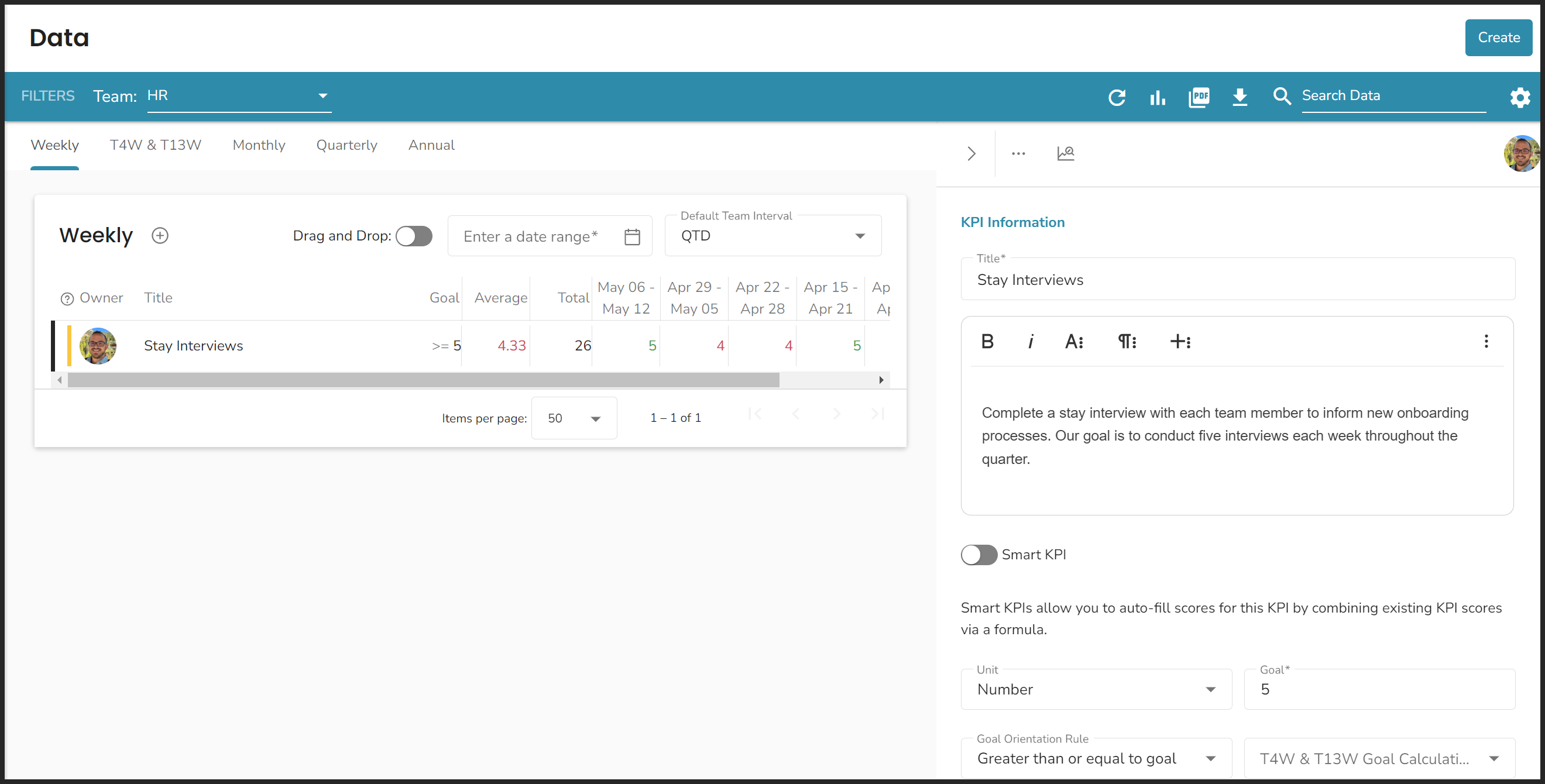
How do I share a Scorecard or Scorecard group with another team?
Currently, you cannot duplicate a full team's Scorecard or group of Measurables to another team's Scorecard tool. If you'd like to submit a request for this feature, click Provide Feedback from the left navigation.
However, you can add Measurables created/added to your team's Scorecard to a group on any other team's Scorecard.
To add a Measurable from another team's Scorecard or a previously created Measurable to your team's Scorecard, click Add existing Measurable at the bottom left of the card, or:
- Click the New Measurable button on the top right of the group's card.
- Click Add Existing Measurable.
- Search for and then click the Measurable you wish to add.
- Click Add.
Additionally, you could share the URL to a specific team's Scorecards with filters applied to have another team member (with access to that team in Ninety) for them to access a specific view of your data.
Can I use Ninety to track daily metrics?
In Ninety's Scorecard tool, you can create weekly, monthly, quarterly, or annual Measurables. So, while there isn't a specific daily option to track a given metric over each day of the week, some of our user have weekly Measurables they update daily.
If you're using a spreadsheet tool to track a daily metric, you can copy and paste the total for each week into a Measurable in Ninety.
Can I save my Scorecard filter settings?
Yes. Scorecard automatically saves your filter selections in the page URL. Simply bookmark the page to save your current view, or copy the URL to share your filtered Scorecard with teammates.
Why do my Scorecard filters reset when I refresh?
As of January 2026, Scorecard filters persist through page refreshes. If you're experiencing this issue, try clearing your browser cache or contact support.
Can I clone a Seat from one draft chart to another?
No, you cannot clone a Seat from one chart to another. You can only clone Seats within the same chart (either the primary chart or a draft chart).